How to add quantity breaks to Shopify (step by step, with video)
How to add quantity breaks to Shopify: the native automatic-discount method, where it falls short, and a 5-step app setup with a tier table and cart nudges. Video.
September 27, 2026 · 7 min read
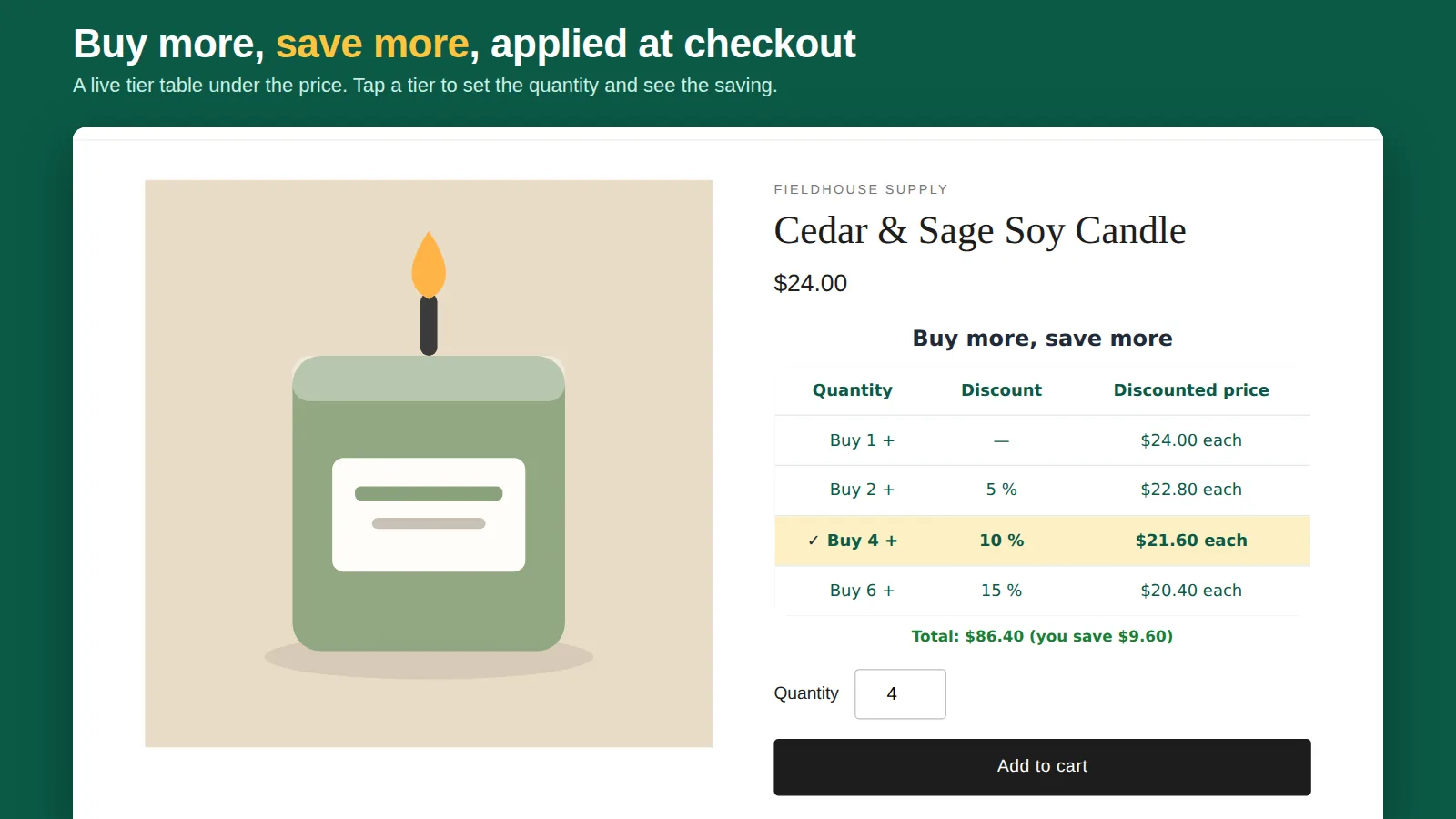
Quantity breaks (also called tiered pricing or volume discounts) reward customers for buying more of something: buy 2 and save 5%, buy 4 and save 10%, buy 6 and save 15%. They lift average order value without a site-wide sale. Here's how to set them up with Shopify's own discounts, where that approach runs out, and what an app adds.
Prefer to watch? The whole app setup takes about a minute on video:

Plan your tiers first
- Keep it to three tiers. More than that is hard to read on a phone.
- Check your margin at the top tier. The deepest discount applies to every unit in the order, not just the extra ones.
- Pick sensible steps. For consumables, 2/4/6 or 3/6/12 map to real buying habits. For B2B, match your case or pack size.
- Decide the discount type: a percentage off, a fixed amount off each unit, or a set price per unit.
The native way: one automatic discount per tier
Shopify doesn't have a single "tiered discount" type, but you can build tiers from automatic discounts:
- Go to Discounts → Create discount → Amount off products.
- Choose Automatic discount and name it for the customer, for example "Buy 3, save 5%".
- Set the value (5%) and the products or collections it applies to.
- Under minimum purchase requirements choose Minimum quantity of items and enter 3.
- Save, then repeat for each tier (6 items → 10%, and so on).
When more than one of these qualifies and they aren't set to combine, Shopify applies the one that gives the customer the best discount, so the 10% tier wins once the cart reaches 6 items. Test it in a cart before you announce it.
Where the native approach falls short
- Shoppers can't see the tiers. Nothing appears on the product page unless you add a table to your theme by hand.
- No nudge in the cart. There's no "add 2 more to save 10%" message.
- The quantity counts across eligible items. A minimum of 6 items is met by 6 different eligible products, which is fine for "mix and match" but not if you mean 6 of the same product.
- Automatic discounts are limited. Shopify caps how many can be active at once, and each tier uses one.
- Per-unit fixed prices are awkward. "£4.50 each when you buy 10" has to be converted into an amount or percentage off.
If you sell B2B, Shopify's B2B catalogs support volume pricing for company customers. That's the native answer for wholesale accounts, but it depends on your plan and only applies to B2B buyers, not your regular storefront. See our wholesale pricing guide for the options.
With an app: tiers, product-page table and cart messages
A quantity-breaks app puts all tiers in one discount and shows them to shoppers. Choose one built on Shopify Functions, so the discount runs inside Shopify's checkout (including Buy It Now and express checkout) rather than in theme scripts.
That's how Tierwise: Quantity Breaks works. Here is the whole setup, step by step:
- Install Tierwise and open it. It opens on "Set up in 3 steps" and has already switched on a ready-made automatic discount (buy 3 save 5%, buy 6 save 10%), so the cart and product page agree from the start. Not ready? Press Pause offer.
- Choose your tiers. Pick a template (Starter 3+/6+, Stack up 2+/4+/6+, Wholesale 10+/25+/50+ or Buy 2, get 1 free), check the live preview and press Use these tiers. For your own tiers, press Edit in Shopify: percentage, amount off each unit or a fixed unit price, for all products, chosen products or collections.
- Add the tier table to your product page. Add to product page opens the theme editor with the Quantity Breaks block already placed; press Save. Back in the app, Check my storefront loads one of your product pages and confirms shoppers can see it.
- Check a cart. Preview in a cart opens your store's cart with enough of one product to reach the first tier.
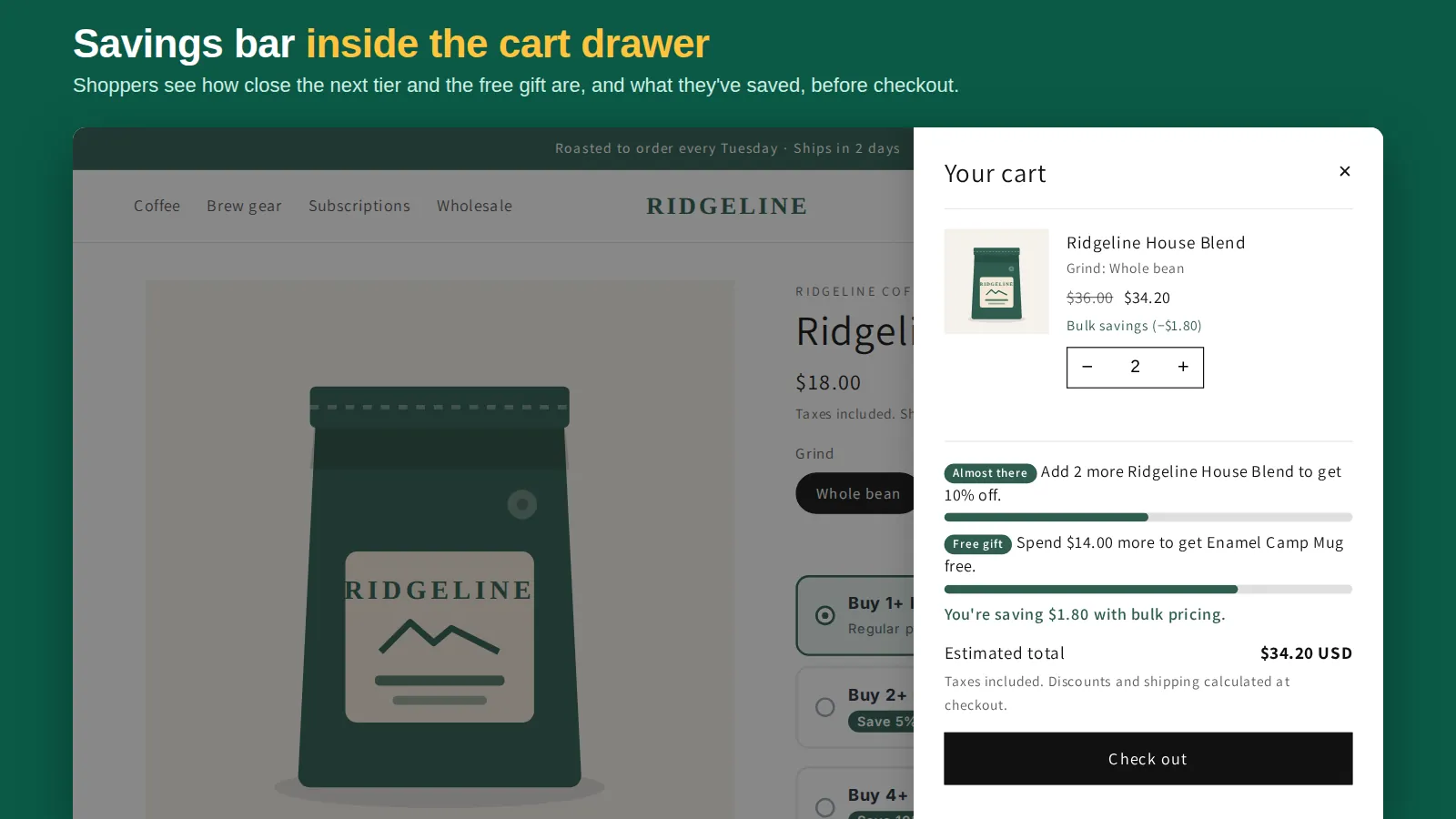
- Recommended extras. Turn on the cart drawer savings bar ("add 2 more to save 10%"), the cart page message and "Up to 15% off" collection badges.
Tiers can be a percentage, an amount off each unit or a fixed unit price, and you can discount in packs. Nothing is written into your theme code, so uninstalling removes the blocks. You need an Online Store 2.0 theme such as Dawn. The full walkthrough with screenshots is in the Tierwise setup tutorial.
Test before you launch
- Add one below the first tier and check no discount applies.
- Add up to each tier and check the cart and checkout totals.
- Try Buy It Now or an express wallet if your theme shows them.
- Combine with a discount code you already run and confirm the result is what you intend.
If you also need minimums (for example "cases of 6 only"), that's an order limit rather than a discount. See how to limit order quantity in Shopify.
Next: volume discount not applying? 7 checks, quantity discounts without Shopify Plus and quantity break apps compared.
Frequently asked questions
Can I add quantity breaks to Shopify without an app?
Yes, with one automatic discount per tier (Amount off products, minimum quantity of items). Shopify applies the best one that qualifies, but nothing shows the tiers on the product page or nudges shoppers in the cart.
Do quantity breaks need Shopify Plus?
No. Automatic discounts and apps built on Shopify Functions work on every plan. Only B2B catalogs with volume pricing need a plan that includes B2B.
How many tiers should I use?
Two or three. The first should be reachable by a normal shopper (2 or 3 items); deeper tiers reward bigger buyers.