How to show a quantity discount table on Shopify product pages
Three ways to show quantity-break and volume discount tiers on Shopify product pages: a description table, a metafield with Liquid, or an app block.
October 10, 2026 · 5 min read
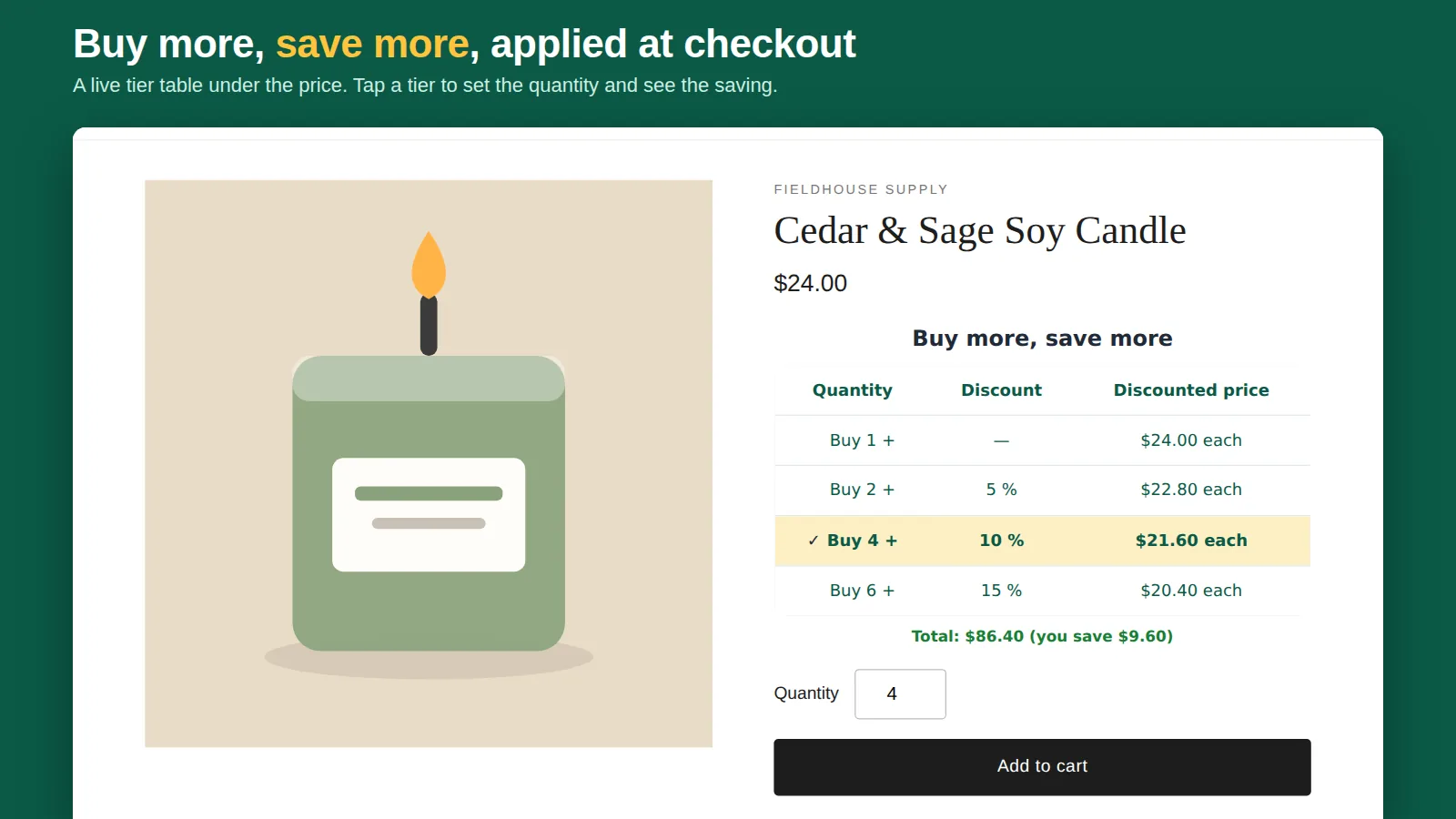
A quantity discount nobody sees doesn't change behaviour. If your tiers only exist in the Discounts page, shoppers find out at checkout, if at all. A small tier table under the price ("1 item: $20 · 3+: $19 each · 6+: $18 each") is what turns "buy one" into "buy three". Here are three ways to add one to a Shopify product page.
What a good tier table shows
- The quantity and the per-unit price for each tier, not only the percentage.
- The saving, in money or percent, so the shopper doesn't do maths.
- The current selection highlighted, ideally tappable to set the quantity.
- Prices that match checkout exactly. If the table says $18 and checkout says $18.50, you lose trust and get support emails.
Option 1: a static table in the product description
Quickest: edit the product, add a table to the description with the editor's table button, and type the tiers. It works on any theme and costs nothing.
The catch: it's text, so it won't update when you change a price, and it doesn't apply a discount. Pair it with the automatic discounts from our quantity breaks setup guide, and update both whenever prices change. Fine for a handful of products.
Option 2: a metafield and a custom liquid block
For many products with the same tiers, store the tiers once and render them in the theme:
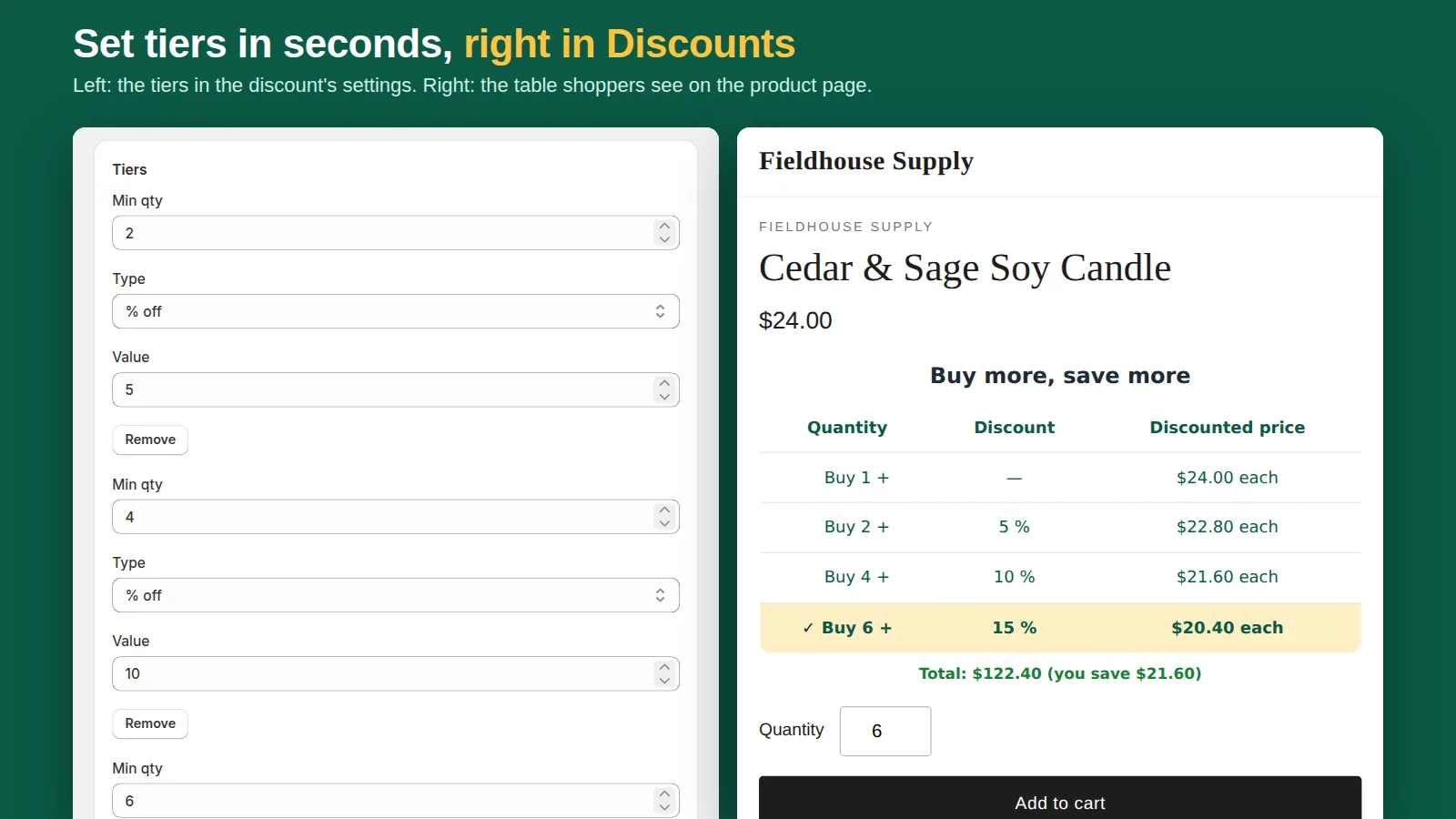
- Settings → Custom data → Products → add a metafield, for example
custom.tiers(multi-line text, one tier per line such as3|5). - Fill it on each product, or in bulk.
- Online Store → Themes → Customize → product template → Add block → Custom Liquid, and loop over the lines to print a table with
product.priceand the percentage.
You still need the automatic discounts so checkout matches, and someone has to maintain the Liquid when the theme updates. It is a good middle ground if you're comfortable with code.
Option 3: an app block that reads the real discount
A quantity-break app adds the table as a theme app block that reads the same discount Shopify applies at checkout, so the table and the checkout price can't drift apart. Uninstalling removes the block; nothing is written into your theme files. Look for:
- A discount built on Shopify Functions, so the price holds on Buy It Now and express checkout.
- Tap-to-select tiers that set the quantity selector.
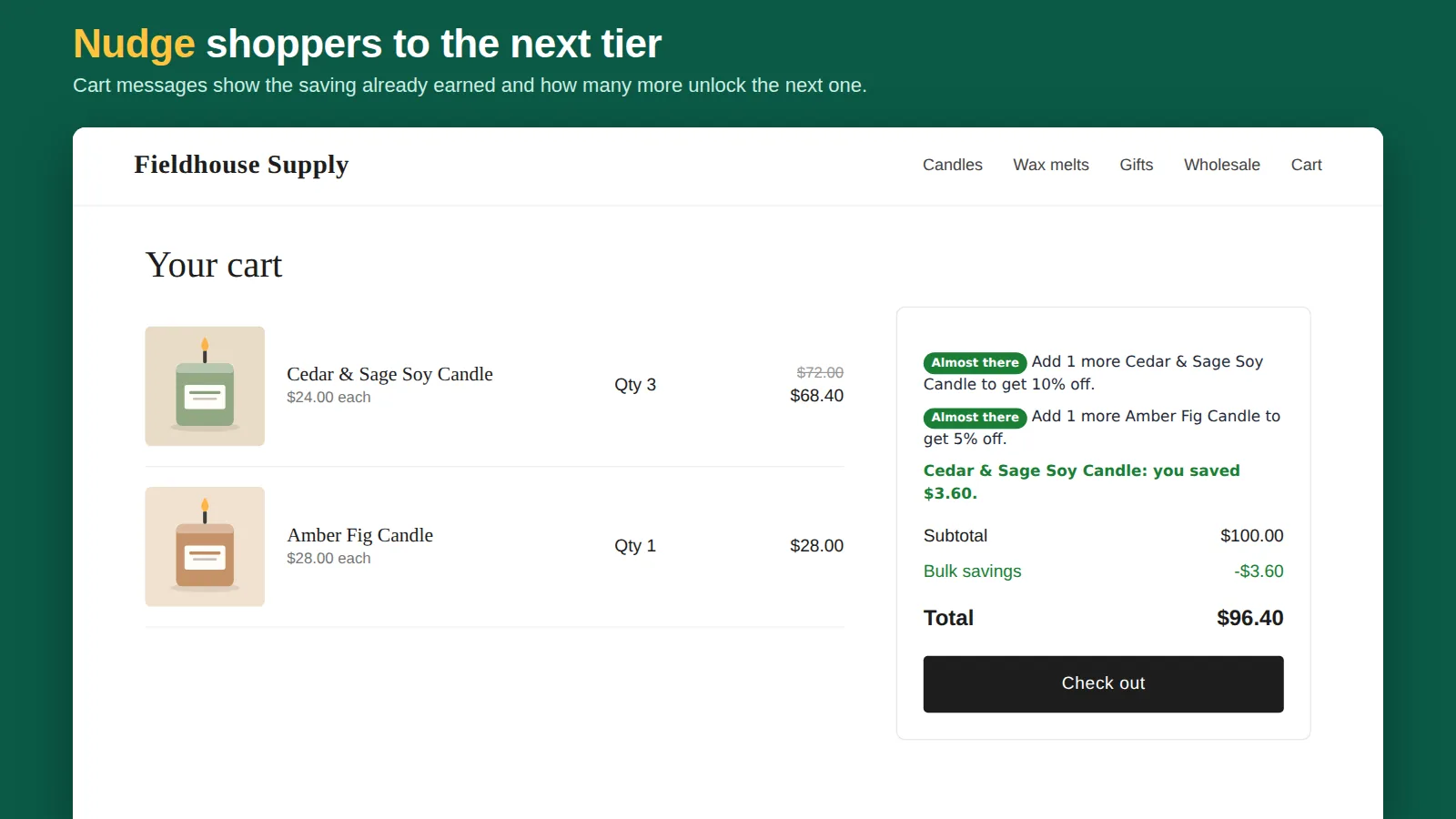
- A cart message ("add 2 more to save 10%") and collection badges ("Up to 15% off").
- Online Store 2.0 support: app blocks need a 2.0 theme such as Dawn.
In Tierwise, "Add to product page" opens the theme editor with the Quantity Breaks block already placed; press Save. The block shows the tiers of the discount covering that product and updates the live total as the shopper taps a tier. Cart messages and collection badges are one click each from the app home.
Placement tips
- Put the table directly under the price, above the quantity selector and Add to cart.
- Three tiers at most on mobile; more makes the table scroll.
- Label the most popular tier ("Most popular") if your data supports it, and keep the wording honest.
- Check it on a phone. Most Shopify traffic is mobile.
Frequently asked questions
Can I show quantity discount tiers on a Shopify product page without an app?
Yes: type a table into the product description, or store tiers in a metafield and print them with a Custom Liquid block. Either way you also need automatic discounts so checkout matches.
Why doesn't my tier table match the checkout price?
A static table doesn't know about the discount Shopify applies. Use an app block that reads the actual discount, or update the table every time prices or tiers change.