
Tierwise: Quantity Breaks
Tierwise setup tutorial: quantity breaks live in five minutes
This guide takes a new Tierwise install to a live offer: an automatic discount that Shopify applies at checkout, and a tier table shoppers can see on the product page. It takes about five minutes on any Online Store 2.0 theme (Dawn, Horizon and every Theme Store theme since 2021). Nothing is written into your theme code.

Install Tierwise and open it
Install Tierwise: Quantity Breaks from the Shopify App Store and open it from Apps in your Shopify admin. It opens on “Set up in 3 steps”, with a live status badge for each step.
On first open, Tierwise switches on a ready-made automatic discount (buy 3, save 5%; buy 6, save 10% on every product) so the cart and the product page always agree. A banner says exactly what is on. Not ready yet? Press Pause offer: nothing is deleted.
Step 1: choose your deal
Pick a template and watch the live preview of the table shoppers will see: Starter (3+ save 5%, 6+ save 10%), Stack up (2+ / 4+ / 6+), Wholesale (10+ / 25+ / 50+) or Buy 2, get 1 free. Press Use these tiers (or Use this offer). It runs as an automatic discount, so shoppers never type a code.
Want something else? Edit in Shopify opens the discount in Discounts. Under Discount style choose quantity-break tiers, a discount in packs, Buy X get Y, a mix-and-match bundle or a free gift with purchase. Tiers can be a percentage, an amount off each unit or a fixed unit price, for all products, chosen products or collections.
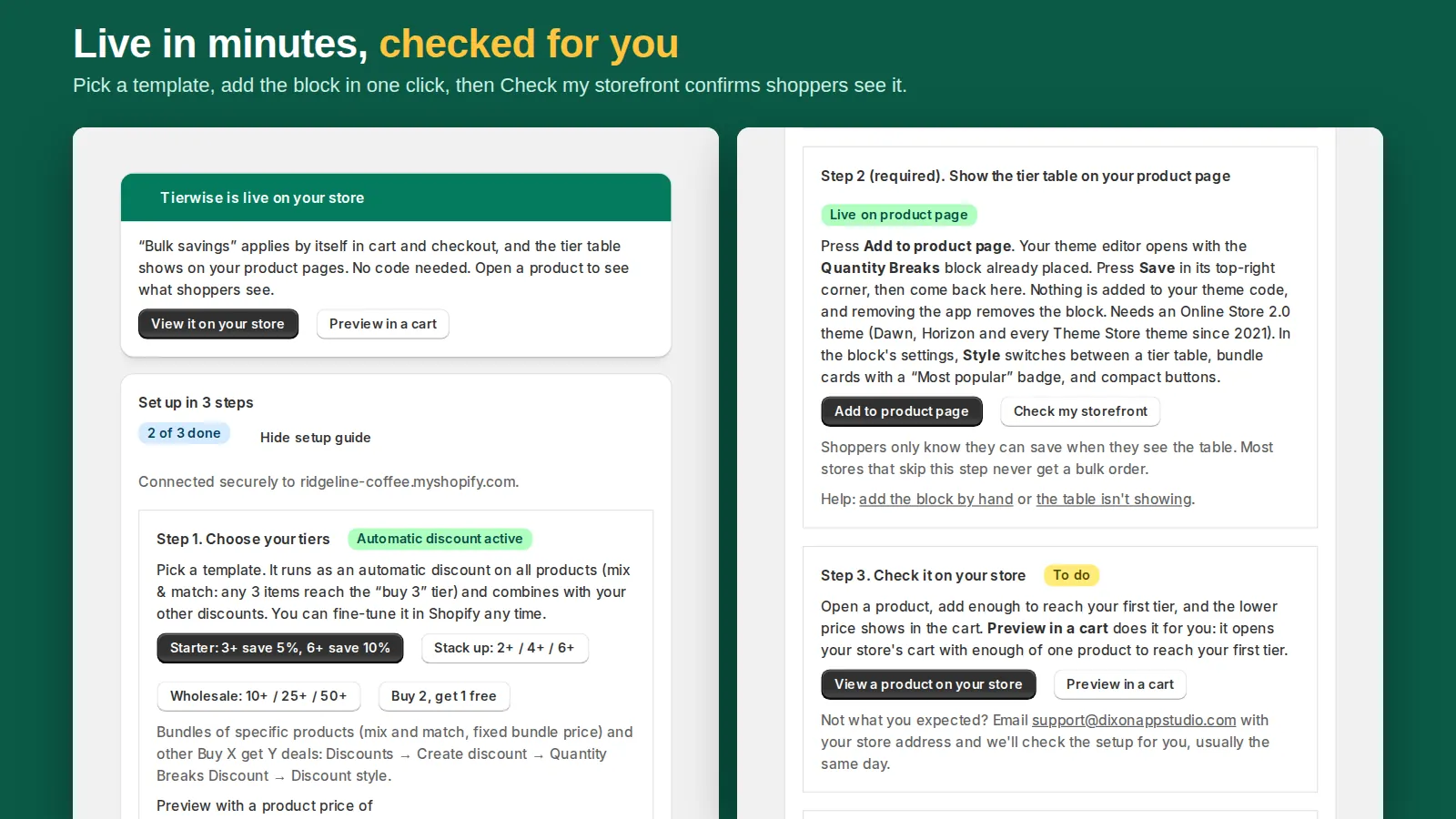
Step 2: show the tier table on your product page (required)
Press Add to product page. Your theme editor opens with the Quantity Breaks block already placed in the product section. Press Save in the top-right corner, then come back to Tierwise. Drag the block under the price if you like.
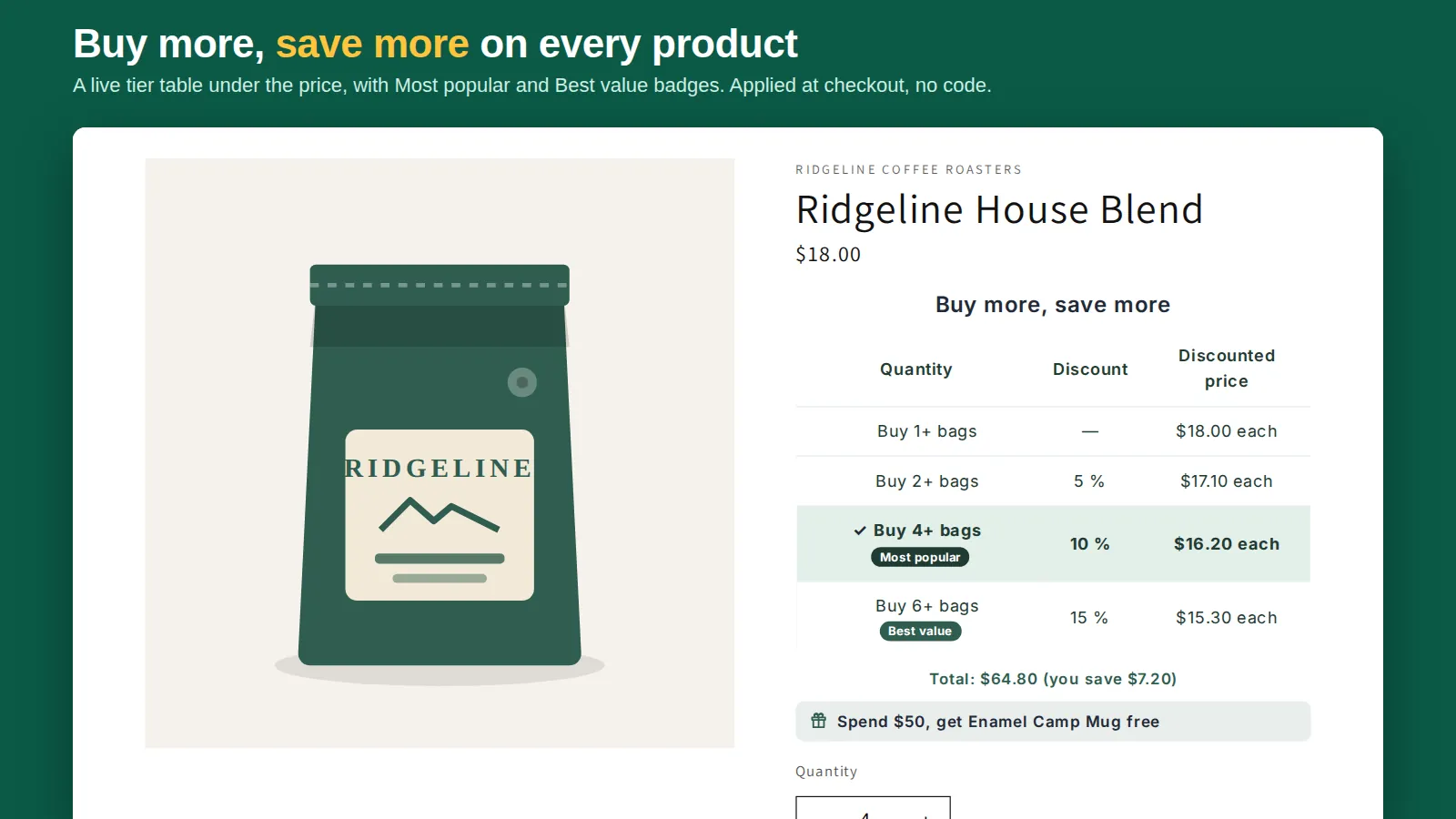
In the block settings, Style switches between a tier table, bundle cards with a Most popular badge, and compact buttons. Tapping a tier sets the quantity.
Back in Tierwise, press Check my storefront. Tierwise loads one of your real product pages and confirms the table is live. This is the step most stores skip, and shoppers only buy more when they can see the saving.
Step 3: check it in a cart
Press Preview in a cart: your store's cart opens with enough of one product to reach the first tier, so you can see the lower price straight away. Shopify applies the discount in the cart, at checkout, on Buy it now and in express checkout.
Recommended: cart drawer, cart page and collection badges
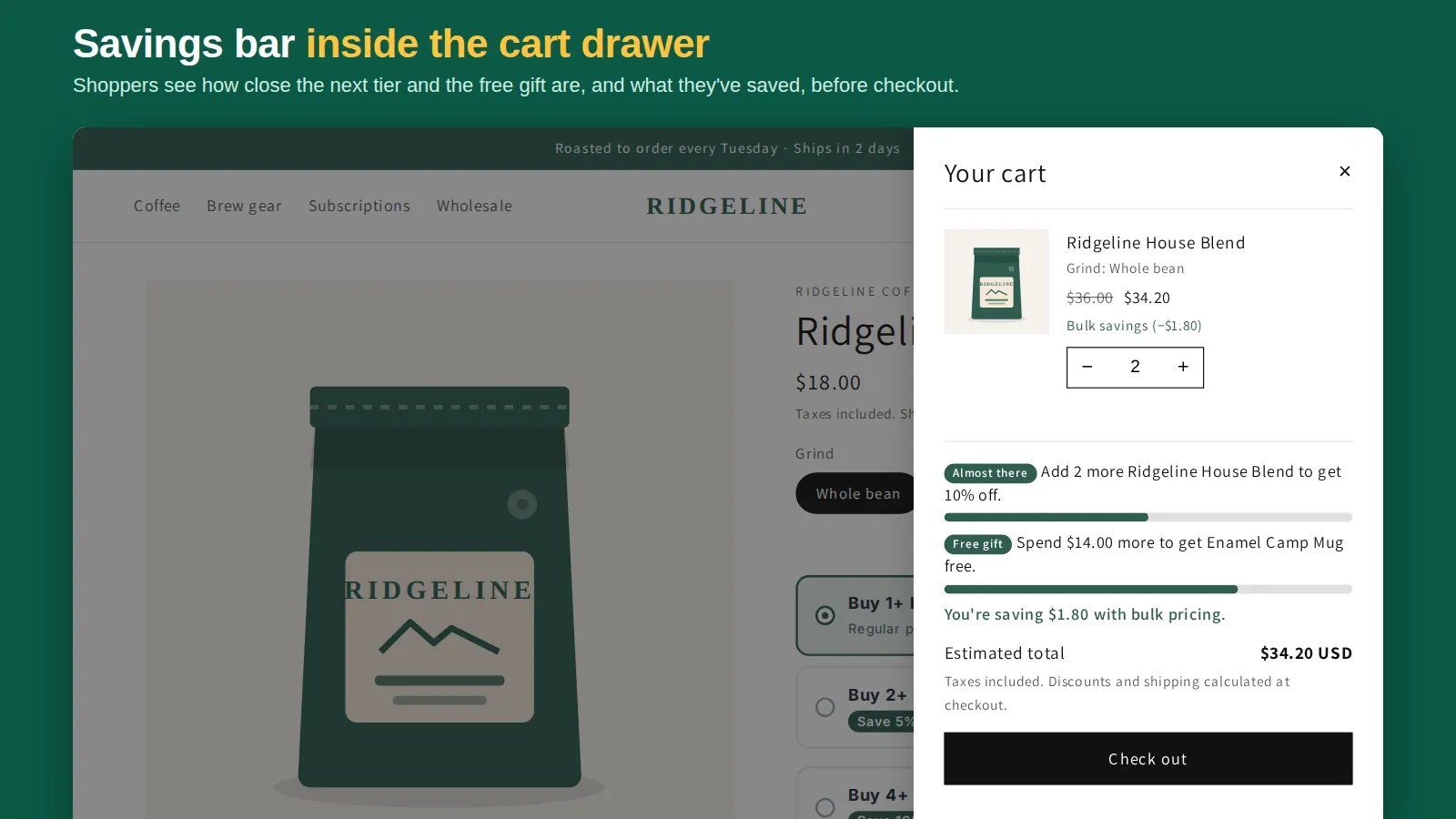
Turn on cart drawer savings: “Add 2 more to save 10%”, free-gift progress and the amount saved, with a progress bar, inside your slide-out cart. Add to cart page puts the same message on the cart page, and Turn on collection labels adds “Up to 15% off” badges to product cards. Press Save in the theme editor after each.
Optional: wholesale tiers and order limits
On Pro, fill in “Only for customers tagged” (for example wholesale) in a campaign so only logged-in customers with that tag get those tiers. Order limits live in Settings → Checkout → Checkout rules → Order Limits: minimum, maximum and multiple-of quantities per product, per collection or for the whole cart, with your own messages and exempt customer tags.
Setting up buy 2, get 1 free instead
The same flow with the Buy 2, get 1 free template. Written guide: Buy 2 get 1 free on Shopify.

If something doesn't look right
The tier table doesn't show on a product
It shows only on products covered by an active, automatic quantity-break discount. Step 1 on the app home must read “Automatic discount active”, and the product must be in the discount's products or collections. Then press Check my storefront.
The discount doesn't apply at checkout
Another automatic discount that doesn't combine with product discounts can win instead. The ready-made discount combines with your other discounts; for one you made yourself, open it and tick Combinations → Product discounts and Order discounts.
Check my storefront says the store is password protected
A store behind a password can't be checked from outside. Open the product in the theme editor preview instead, or check again once you remove the password at launch.
My discount is set to Method: Code
A code discount only applies when a shopper types the code, so nobody sees tier pricing. The app home flags it; Click to fix creates the automatic version and turns off the unused code one.
Guides
- How to add quantity breaks to Shopify (step by step, with video)
- Shopify tiered pricing: 4 ways to set it up, compared
- Buy 2 get 1 free on Shopify: set up an automatic BOGO discount
- Shopify bundle discount: 3 ways to set it up (and which to use)
- Shopify free gift with purchase: set it up so shoppers actually claim it
- Shopify quantity discounts without Shopify Plus
Get Tierwise
Reward bigger orders with quantity discounts at checkout.
Install from the Shopify App Store