How to schedule a sale in Shopify (start and end automatically)
Schedule a Shopify sale to start and end on time: automatic discounts with active dates, compare-at sale prices, and scheduled bulk price changes with undo.
October 10, 2026 · 6 min read
Black Friday starts at midnight, the flash sale ends Sunday at 11:59 pm, and you'd rather be asleep for both. Shopify can schedule some kinds of sale on its own, and not others. The difference comes down to one question: do you want a discount applied at checkout, or sale prices on the product with the old price crossed out?
Two kinds of "sale" in Shopify
- A discount (Discounts → Create discount). The product keeps its normal price; the discount is taken off in the cart or at checkout, automatically or with a code. Shopify lets you set a start and end date.
- Sale prices. You lower each variant's Price and put the old price in Compare-at price, so product and collection pages show the crossed-out "was" price and a Sale badge (in most themes). Shopify has no built-in schedule for this.
Shoppers respond better to a visible crossed-out price on the product page, which is why so many stores use compare-at sales even though discounts are easier to schedule.
Option 1: schedule an automatic discount (built in, free)
- Go to Discounts → Create discount and choose Amount off products (or another type).
- Pick Automatic discount so no code is needed, or keep a code if you're emailing it.
- Set the value and which products or collections it applies to.
- Under Active dates, set the start date and time, tick Set end date, and set when it ends.
- Save. Shopify switches it on and off for you.
Limits to know: whether the product page shows the reduced price depends on your theme (many show the normal price until the cart), and automatic discounts can interact with other discounts depending on the combination settings you choose. Check the result on a test order before the sale goes live.
Option 2: change compare-at prices by hand on the day
The manual compare-at sale is two edits per variant, twice:
- Start: copy the current price into Compare-at price, then lower Price.
- End: copy Compare-at price back into Price, then clear Compare-at price.
Use Shopify's bulk editor (Products → select → Bulk edit, add the Price and Compare-at price columns) or a product CSV export and import. Neither can be scheduled, and the bulk editor has no formulas, so a "20% off everything" sale means working out each price. Our guide to bulk editing prices covers the CSV formulas.
Shopify Flow does have a scheduled-time trigger, and with an Admin API request action it can update prices. That works if you're comfortable writing GraphQL, but you're building your own sale tool, including the part that puts the old prices back.
Option 3: schedule the price change with an app
Bulk Edit Everything treats a sale as a bulk price task you can schedule. A typical setup:
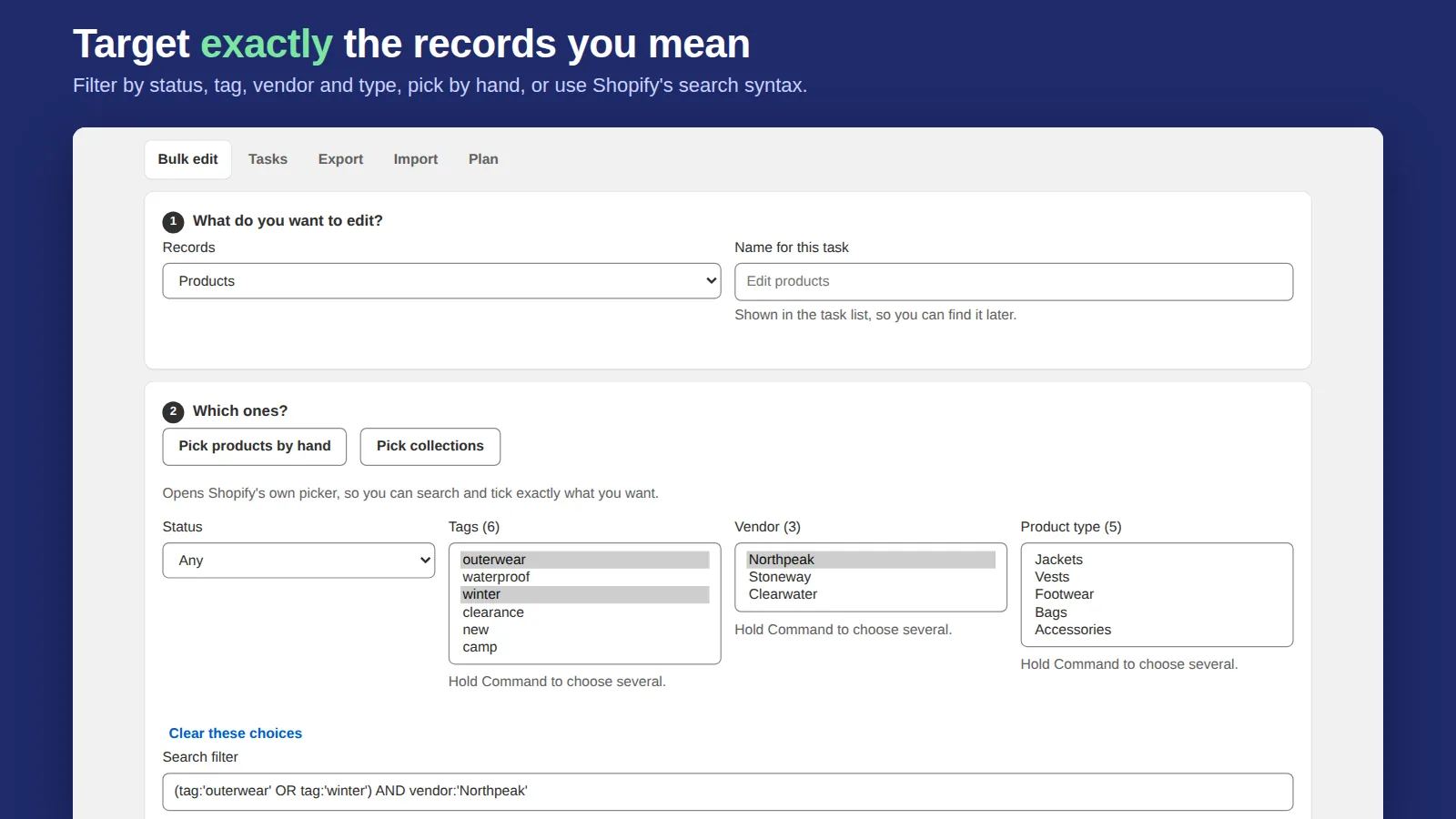
- Pick the products with Shopify search filters (a collection, vendor, tag or product type).
- Start task: copy Price into Compare-at price, then lower Price by a percentage. Round the result to .99 if you like, and set a floor so nothing falls below a price you name.
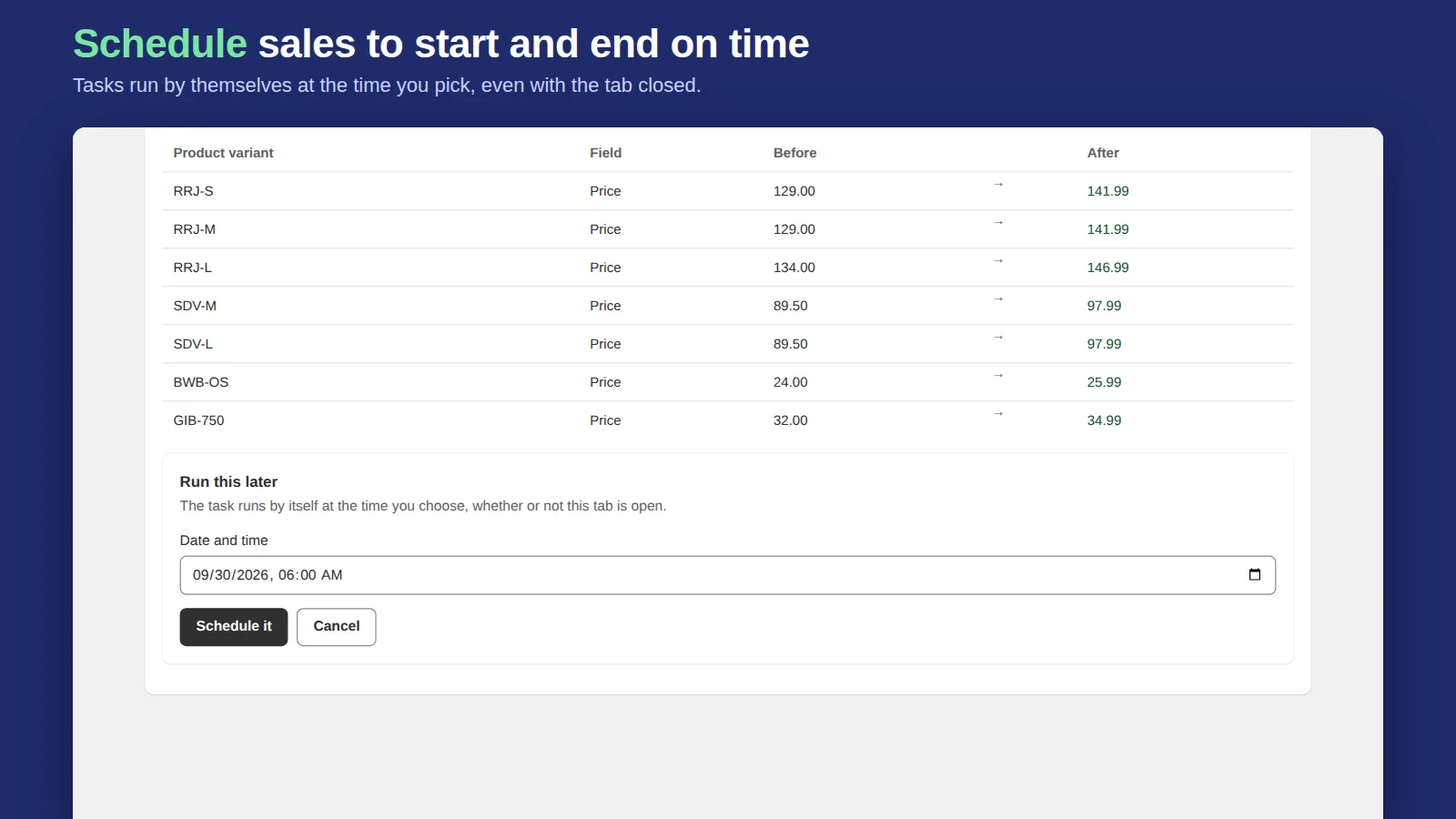
- Preview every before-and-after value, then schedule it for the start date and time.
- End task: schedule a second task for the end time that copies Compare-at price back into Price and clears Compare-at price. Or, if nothing else changed those prices during the sale, undo the start task.
Scheduled tasks run on the server, so the browser can be closed. Every task can be undone with one click if a price comes out wrong. Scheduling is on the Starter ($9.99/month) and Pro ($24.99/month) plans, both with a 7-day trial; the free plan can run the same price changes right away, up to 50 changed records per task.
Checklist before any scheduled sale
- Check the store's time zone in Settings → General; schedules follow it.
- Test on one product first and look at the product page, the collection page and the cart.
- Decide whether discount codes can stack on top of sale prices, and set the discount combinations to match.
- If you show a quantity-break table, make sure the tiers still make sense at the sale price (see quantity breaks in Shopify).
- Write down how the sale ends, before it starts.
Frequently asked questions
Can Shopify schedule a sale automatically?
Yes for discounts: set a start and end date under Active dates when you create an automatic discount or code. Compare-at sale prices have no built-in schedule; change them on the day or use a bulk editor app that schedules price changes.
How do I show the crossed-out price during a Shopify sale?
Put the original price in Compare-at price and the sale price in Price. Most themes then show the old price crossed out with a Sale badge.
How do I end a compare-at sale?
Copy Compare-at price back into Price and clear Compare-at price for each variant. A bulk editor can do it for every product at once, or on a schedule.