How to bulk edit tags in Shopify: add, remove, rename and clean up
Add or remove tags on many Shopify products, customers or orders, rename a tag, and clean up old or duplicate tags, using built-in bulk actions first.
October 10, 2026 · 6 min read
Tags drive a lot of a Shopify store: smart collections, search filters, discounts, Shopify Flow automations, wholesale pricing and order routing. So sooner or later you need to add a tag to 300 products, strip an old campaign tag from every order, or rename Summer-Sale to summer-sale everywhere. Here's how to do each job, with Shopify's own tools first.
Add or remove a tag on many products (built in)
- Go to Products and filter the list so only the products you want are showing (by vendor, type, tag, collection, status or a search).
- Tick the checkbox at the top of the list to select them. If there are more than one page of results, use the "Select all" link that appears.
- Open the … (More actions) menu and choose Add tags or Remove tags.
- Type the tag (or pick an existing one) and confirm.
The same Add tags / Remove tags bulk actions exist on the Customers and Orders lists. For most "add one tag to a filtered list" jobs, that's all you need, and it's free.
Edit tags product by product in the bulk editor
Select products, click Bulk edit, and add the Tags column. Each cell holds that product's tags as a comma-separated list you can type into. It's handy when every product needs different tags, but it's manual: there's no find-and-replace across cells.
Rename or replace a tag (the part Shopify doesn't do)
Shopify has no "rename tag" button. The native workaround is two passes:
- Filter products by the old tag (
tag:Summer-Salein the search, or the Tagged with filter). - Select all, then Add tags with the new name.
- With the same selection, Remove tags with the old name.
- Check every smart collection, discount, Flow workflow and theme filter that matched the old tag, because they won't follow the rename.
Shopify tags are case-insensitive in most of the admin, so Sale and sale usually behave as the same tag. That's another reason to settle on one spelling (lowercase with hyphens is the easiest to keep consistent).
Tag cleanup jobs that need more than add and remove
These come up on any store that's a few years old:
- Remove every tag that starts with something, for example all the
promo-2024-*tags left from old campaigns. - Keep only the tags you still use and drop the rest.
- Find and replace inside tags, such as
colour-→color-across hundreds of products. - Fix case and duplicates so
Red,redandREDbecome one tag. - Tag orders or customers by rule, such as tagging every wholesale customer from a list.
Natively these mean exporting a CSV, editing the Tags column with spreadsheet formulas, and importing it again (products only; the customer CSV import can overwrite customer data, so test on a copy). Shopify Flow can add or remove tags automatically when an event happens, which is great for new orders and customers going forward, but it isn't built for one-off cleanups of existing records.
With an app: every tag action, with a preview and undo
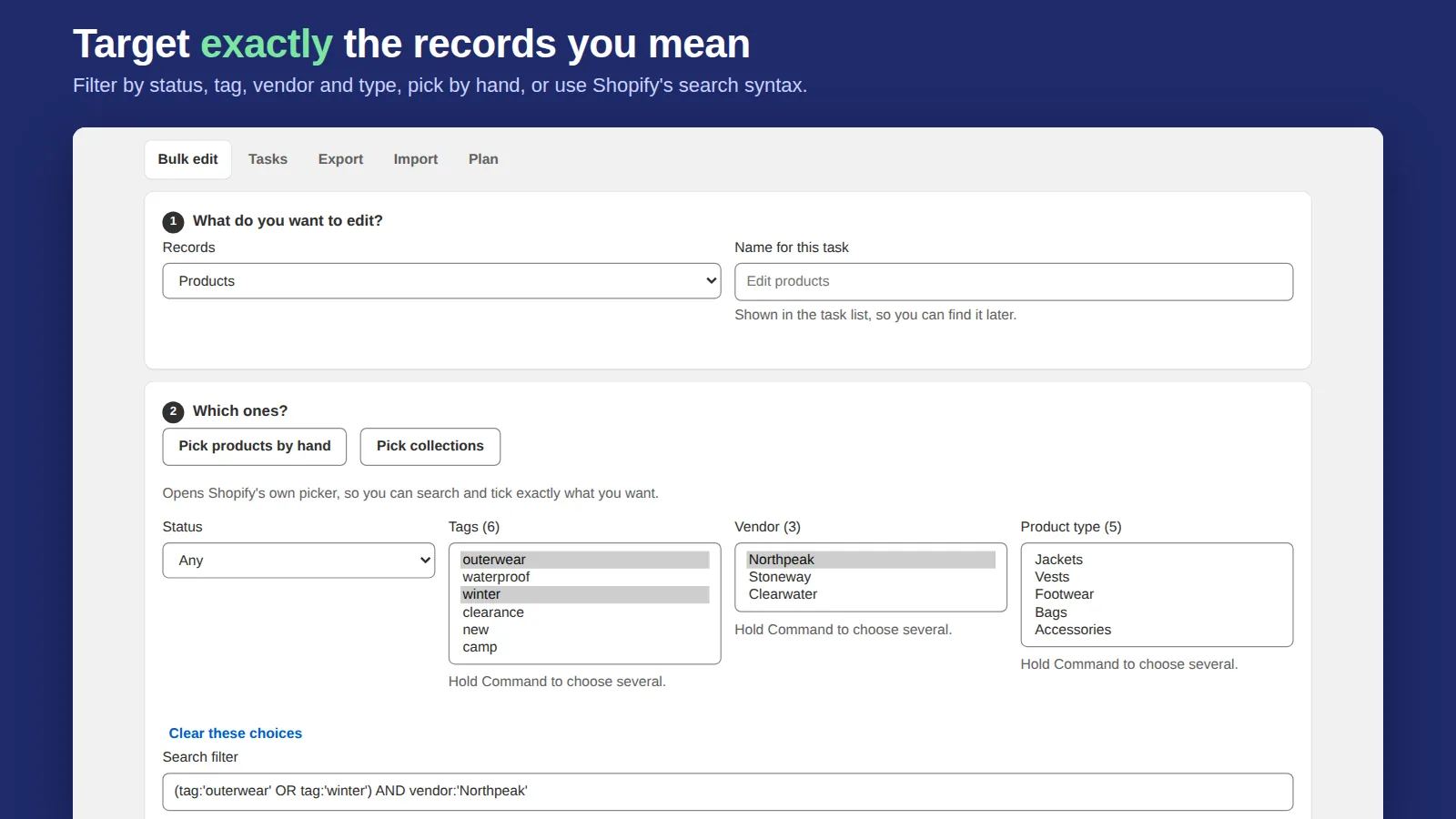
Bulk Edit Everything edits tags on products, customers, orders, draft orders and blog posts. Pick the records with Shopify's own search filters, choose a tag action, and check the before-and-after preview before anything is saved. The tag actions are:
- add tags, or add them at the start of the list;
- remove specific tags, remove every tag matching a pattern, or keep only the tags matching a pattern;
- find and replace inside each tag (plain text, whole word or a regular expression);
- replace all tags, or clear them;
- change case, remove duplicates, and sort.
Every task can be undone with one click, so a pattern that matched more than you meant isn't a disaster. Records whose tags wouldn't change are skipped, and on the free plan only changed records count toward the 50-per-task allowance.
A simple tag naming scheme
Whatever tool you use, a scheme stops the mess coming back:
- Use a prefix per purpose:
color-red,material-wool,promo-bfcm,wholesale. - Lowercase with hyphens, no spaces or punctuation.
- Date campaign tags (
promo-2026-bfcm) so they're easy to find and remove later. - Write the list down. Smart collections, discounts and Flow workflows all depend on exact tag names.
Tags feed smart collections, so after a rename check the collection rules too. See our smart collections guide and the wider Shopify bulk editor guide.
Frequently asked questions
How do I add a tag to many products in Shopify?
In Products, filter the list, select the products, then choose More actions → Add tags. Customers and Orders have the same Add tags and Remove tags bulk actions.
Can I rename a tag in Shopify?
Not directly. Filter by the old tag, bulk add the new tag, then bulk remove the old one. Update any smart collections, discounts and Flow workflows that used the old name.
How do I remove every tag that starts with the same word?
Shopify's bulk actions remove one exact tag at a time. Export a CSV and edit the Tags column with formulas, or use a bulk editor app that removes tags matching a pattern, with a preview and undo.