How to bulk edit orders in Shopify: tags, notes, emails and PO numbers
Bulk edit Shopify orders: tag unfulfilled orders, add notes, fix emails and PO numbers across hundreds of orders, with a preview of every change and one-click undo.
October 23, 2026 · 4 min read
Orders can't be re-imported into Shopify, so a spreadsheet round trip is off the table. Yet teams constantly need to change orders in bulk: tag everything that's waiting to ship, add a note to every order caught by a carrier delay, fix a PO number for a wholesale account, or correct a typo'd email. This guide covers what Shopify's order list can do and how to edit order fields in bulk with a preview and undo.
What Shopify's order list does in bulk
- Add or remove tags on selected orders (More actions → Add tags / Remove tags).
- Fulfil, capture payment, archive, print packing slips for selected orders.
- It can't bulk edit order notes, PO numbers or contact emails, can't find-and-replace inside tags, and can't select more than one page of orders at a time for some actions.
Useful order searches
| Orders | Search |
|---|---|
| Waiting to ship | fulfillment_status:unfulfilled |
| Partly shipped | fulfillment_status:partial |
| Paid, not yet shipped | financial_status:paid fulfillment_status:unfulfilled |
| Placed in a date range | created_at:>=2026-10-01 created_at:<2026-10-08 |
| Already tagged | tag:wholesale |
Bulk edit orders step by step
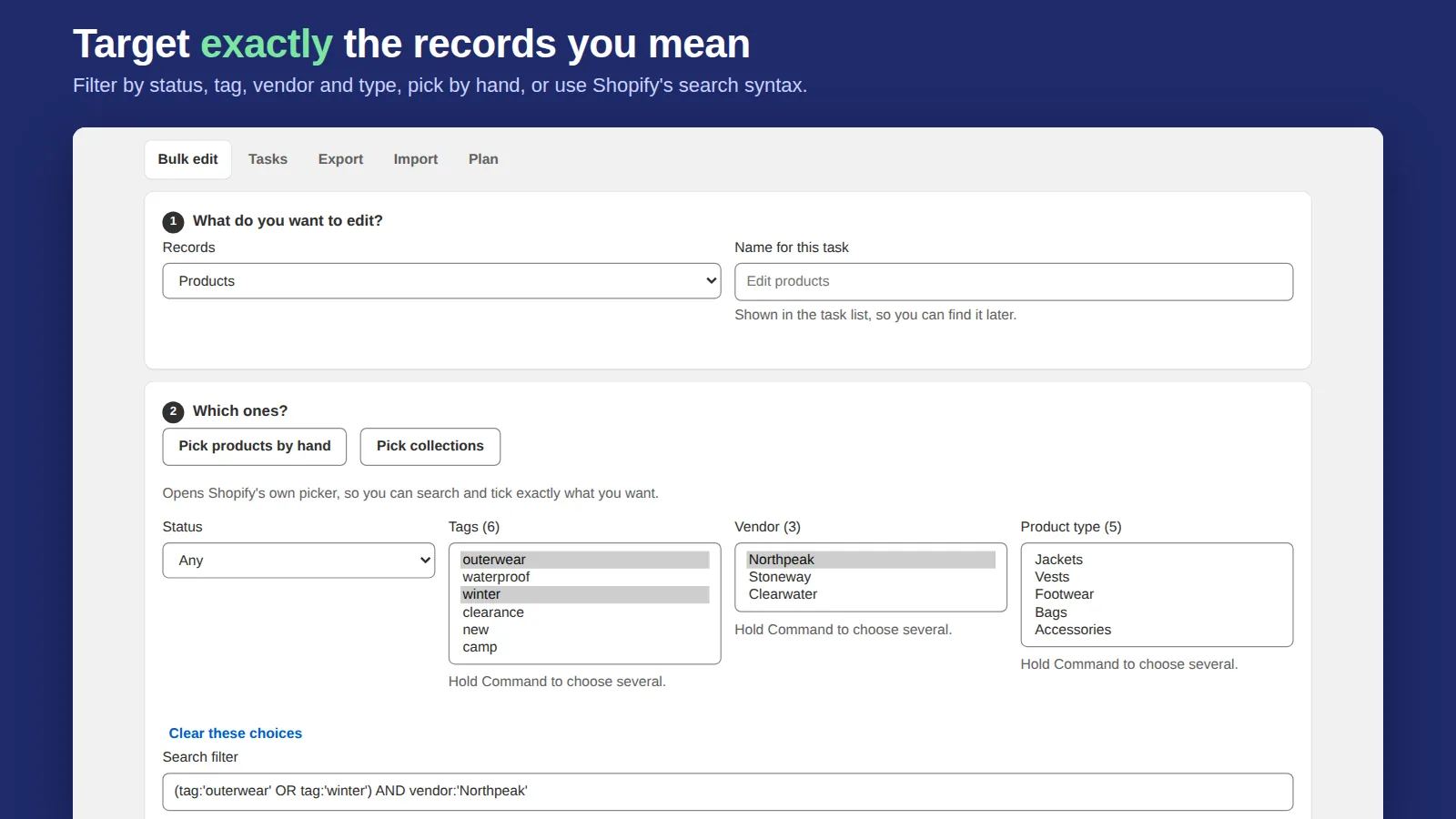
- In Bulk Edit Everything choose Orders (or Draft orders).
- Filter with one of the searches above. The Tag orders waiting to ship recipe fills in
fulfillment_status:unfulfilledand the tagto-shipfor you. - Add changes: tags (add, remove, find and replace), note (set, add to the end), email or PO number.
- Preview every order's before and after, then run. Large tasks keep running if you close the tab.
- Undo from the Tasks tab restores each order's previous values.
Good habits
- Use tags for workflow (
to-ship,delayed,gift-wrap) and saved order views filtered by them. - Append to notes instead of replacing them, so nothing a customer wrote is lost.
- Schedule a tag cleanup (for example removing
delayed) for when the issue is over.
Related: bulk edit customers, bulk edit tags and the best bulk edit apps for Shopify.
Frequently asked questions
Can I import orders into Shopify to update them?
No. Shopify exports orders but has no order CSV import, so order fields have to be changed in the admin, through the API, or with an app that uses it.
How do I add a note to many orders at once?
Shopify's order list can't. In Bulk Edit Everything choose Orders, filter them, add Note → Add to the end, preview and run.
How do I tag all unfulfilled orders?
Search orders with fulfillment_status:unfulfilled, select them and add a tag, or use the Tag orders waiting to ship recipe in Bulk Edit Everything.