How to back up your Shopify store (and what Shopify doesn't save)
Shopify has no restore button for your own changes. What you can export for free, what you can't (collections, pages), and a simple monthly Shopify backup routine.
October 10, 2026 · 6 min read
Shopify keeps the platform running, but it doesn't keep a restorable copy of your changes. If a staff member deletes a collection, a CSV import overwrites 2,000 descriptions, or an app mangles your tags, there's no "restore yesterday" button in the admin. A backup is something you make. Here's what Shopify can export on its own, what it can't, and a free routine that covers most stores.
What Shopify lets you export (free, built in)
- Products: Products → Export, as CSV. Includes variants, prices, SKUs, tags, SEO fields and image URLs.
- Customers: Customers → Export.
- Orders: Orders → Export (a record for your accounts; orders can't be re-imported).
- Inventory: Products → Inventory → Export, per location.
- Discounts: Discounts → Export.
- URL redirects: Content → Menus (Online Store → Navigation in older admins) → URL Redirects → Export.
- Theme: Online Store → Themes → … → Download theme file (Shopify emails a zip), or Duplicate before editing.
What Shopify doesn't export
- Collections: no CSV at all, so smart rules, manual product order, collection SEO and images exist only in the admin.
- Pages and blog posts: no export button.
- Menus, store settings, shipping rates and app data.
- Metafields, in most cases.
Collections are the gap that hurts most. They're often a store's best-ranking pages, and rebuilding a few dozen smart collections from memory is slow and error-prone.
A free monthly backup routine
- Make a folder named with the date, for example
shopify-backup-2026-10. - Export products (all products, CSV for Excel), customers, inventory, discounts and URL redirects into it.
- Download the live theme file and save the zip with the others.
- Export collections with a collection app (below), because Shopify can't.
- Keep the last few months in cloud storage you already use.
- Before any big change (a CSV import, a theme switch, a new bulk-editing app), take an extra backup that day.
Restoring from CSV is manual: you re-import the product file (choose to overwrite products with the same handle) or fix individual records from the file. It's not instant, but it means the data still exists.
Back up collections with Shelfport
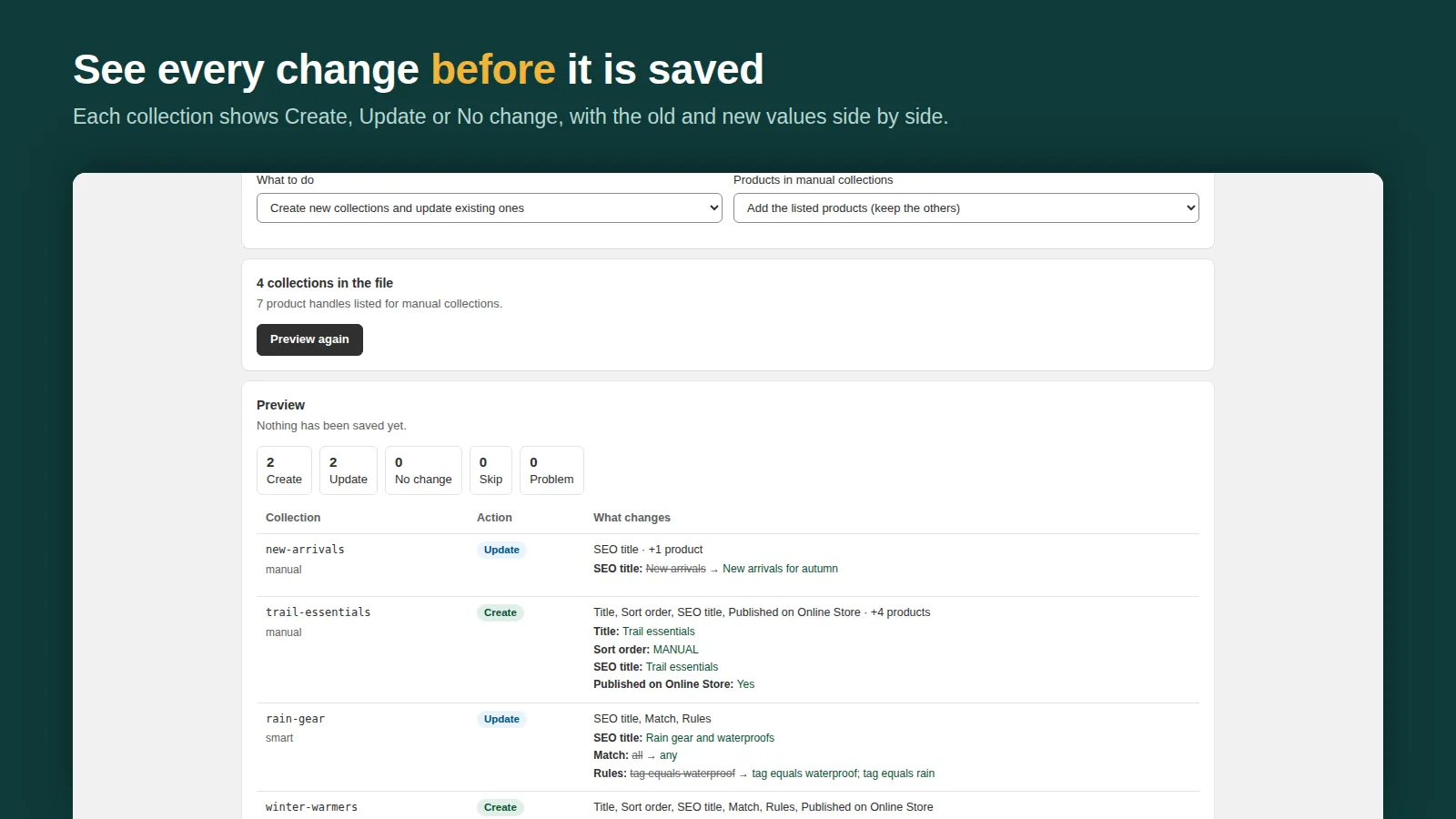
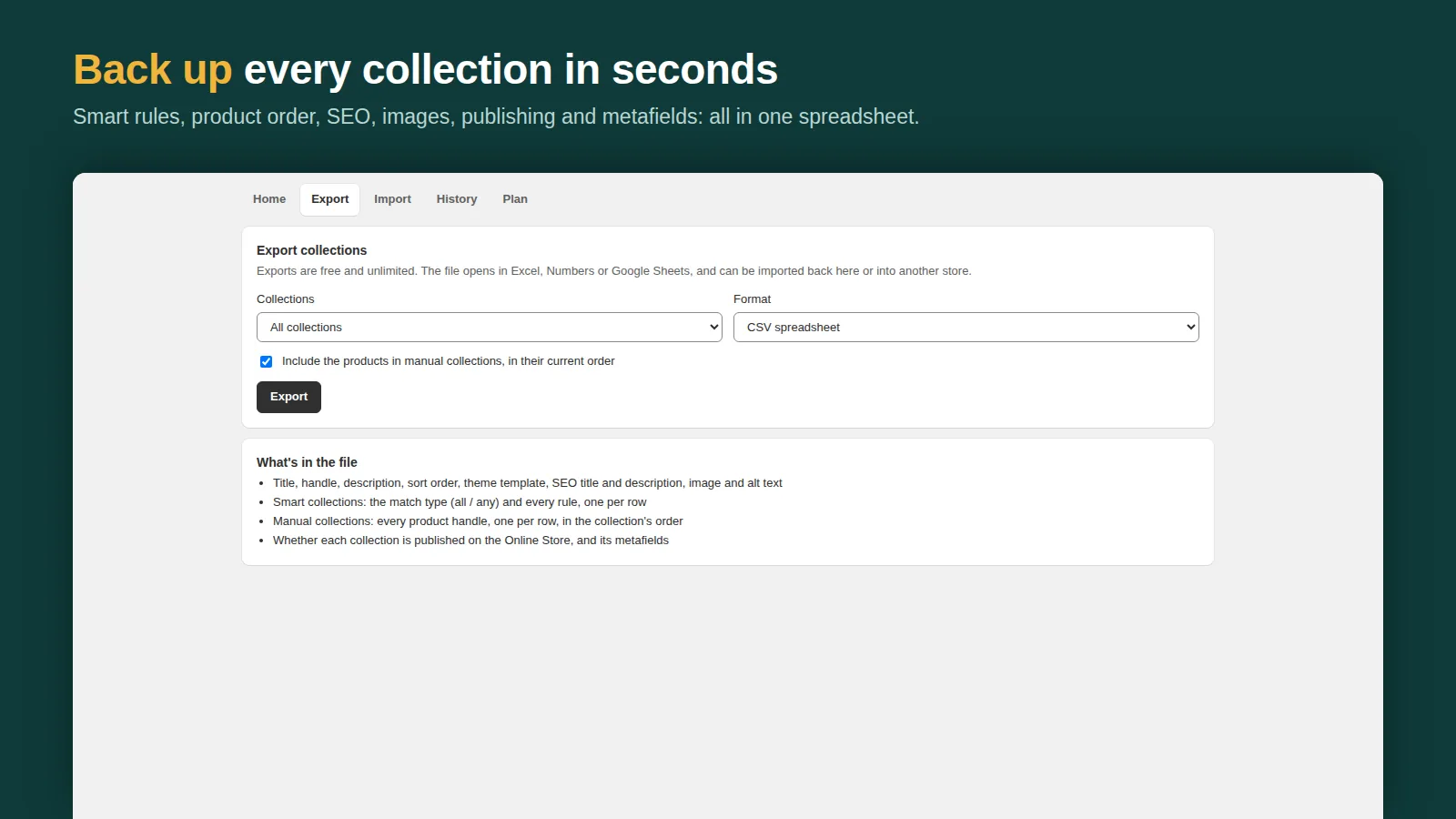
Shelfport: Collection Import exports every collection with its smart rules, manual product order, SEO, image, publishing and metafields, as an Excel/CSV file or a full backup. Exports and backups are unlimited on the free plan. To restore, upload the file: the preview shows which collections would be created or changed before anything is saved, and the import itself can be undone.
Undo for bulk changes, and exports of the rest
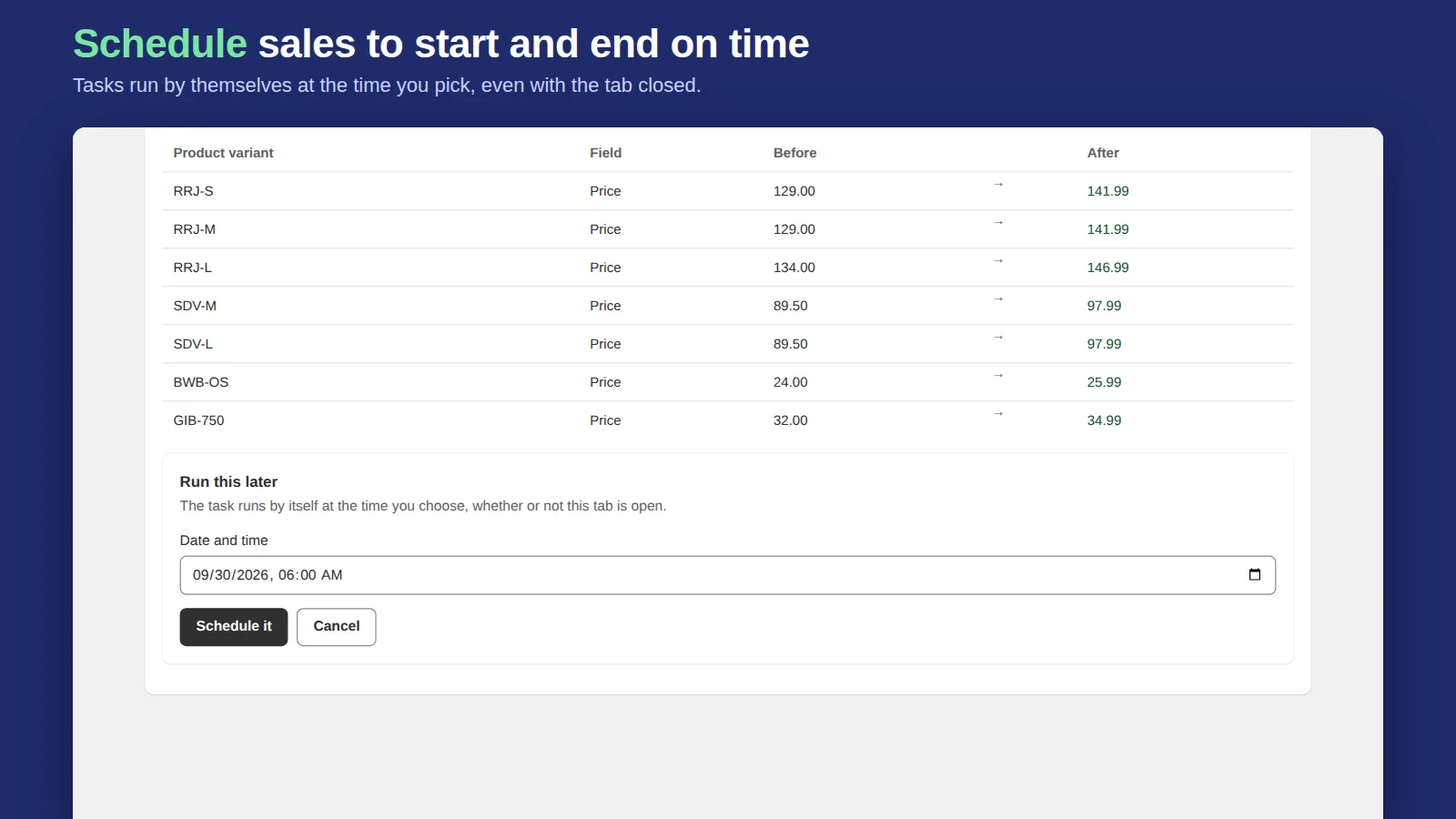
Most data loss isn't a deleted store; it's a bulk change that went wrong. Bulk Edit Everything records every value before it changes anything, so any task (prices, tags, SEO, inventory, customers, orders and more) can be undone with one click, even one that stopped halfway. It also exports pages, blog posts, collections, draft orders, files and other records Shopify has no export for, to CSV with the columns you pick (500 rows per export on the free plan, more on paid plans).
When you need a dedicated backup app
Neither of our apps is a full automatic backup service. If you need daily automatic snapshots of everything, including theme history and one-click restores of individual records, look at the dedicated backup apps in the Shopify App Store's backup category and compare what each restores and how long it keeps copies. For many small stores, the free monthly routine above plus undo on bulk changes covers the realistic risks.
Frequently asked questions
Does Shopify back up my store?
Shopify protects its platform, but it doesn't give you a way to restore your own deleted or overwritten products, collections or content. Export your data regularly or use a backup app.
How do I back up Shopify collections?
Shopify has no collection export. Use a collection export app such as Shelfport, which saves smart rules, product order, SEO and metafields to a CSV or backup file you can import again.
Can I back up my Shopify theme?
Yes. In Online Store → Themes, open the theme's … menu and choose Download theme file, or Duplicate the theme before editing it.