How to copy collections to another Shopify store
Move Shopify collections to a new store: copy products first, rebuild smart and manual collections natively, or export every collection and import it with a preview.
October 11, 2026 · 5 min read
Disclosure: we make Shelfport, mentioned below. The native method needs no app.
Launching a second store for another country, a wholesale store, or a staging copy? Products copy across with the product CSV. Collections don't: Shopify has no collection export. Here's how to move them, natively and the quick way.
Step 1: copy the products first
- In the old store, Products → Export → All products as a CSV for Excel or plain CSV.
- In the new store, Products → Import the file.
- Keep the handles the same. Handles are how collections, links and most tools find products in the new store.
The product CSV has a Product Category and a Tags column, and tags are what most smart collections use, so getting tags across matters more than anything else.
Step 2 (native): rebuild the collections
For each collection in the old store, open it side by side with a new one in the new store and copy:
- Title, description, collection image and SEO title/description
- Type: smart (every condition, plus "all conditions" or "any condition") or manual
- For manual collections: the products, and their order if you sort manually
- The sort order setting (best selling, price, manual and so on)
- Sales channel publishing, the theme template, and any metafields
With 10 collections that's an afternoon. With 200 it's days, and a typo in a smart rule quietly empties a collection.
Step 2 (faster): export all collections and import them
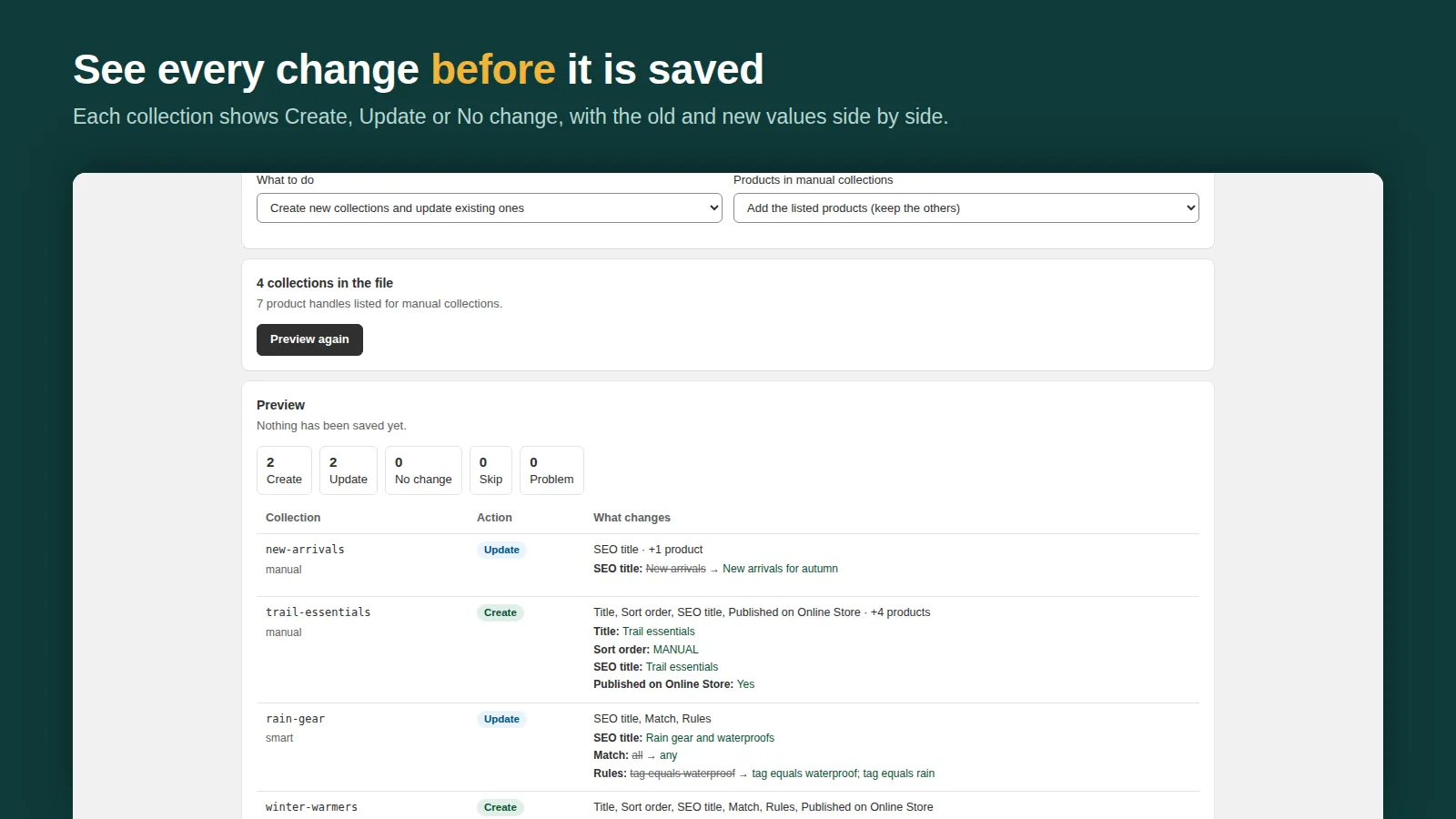
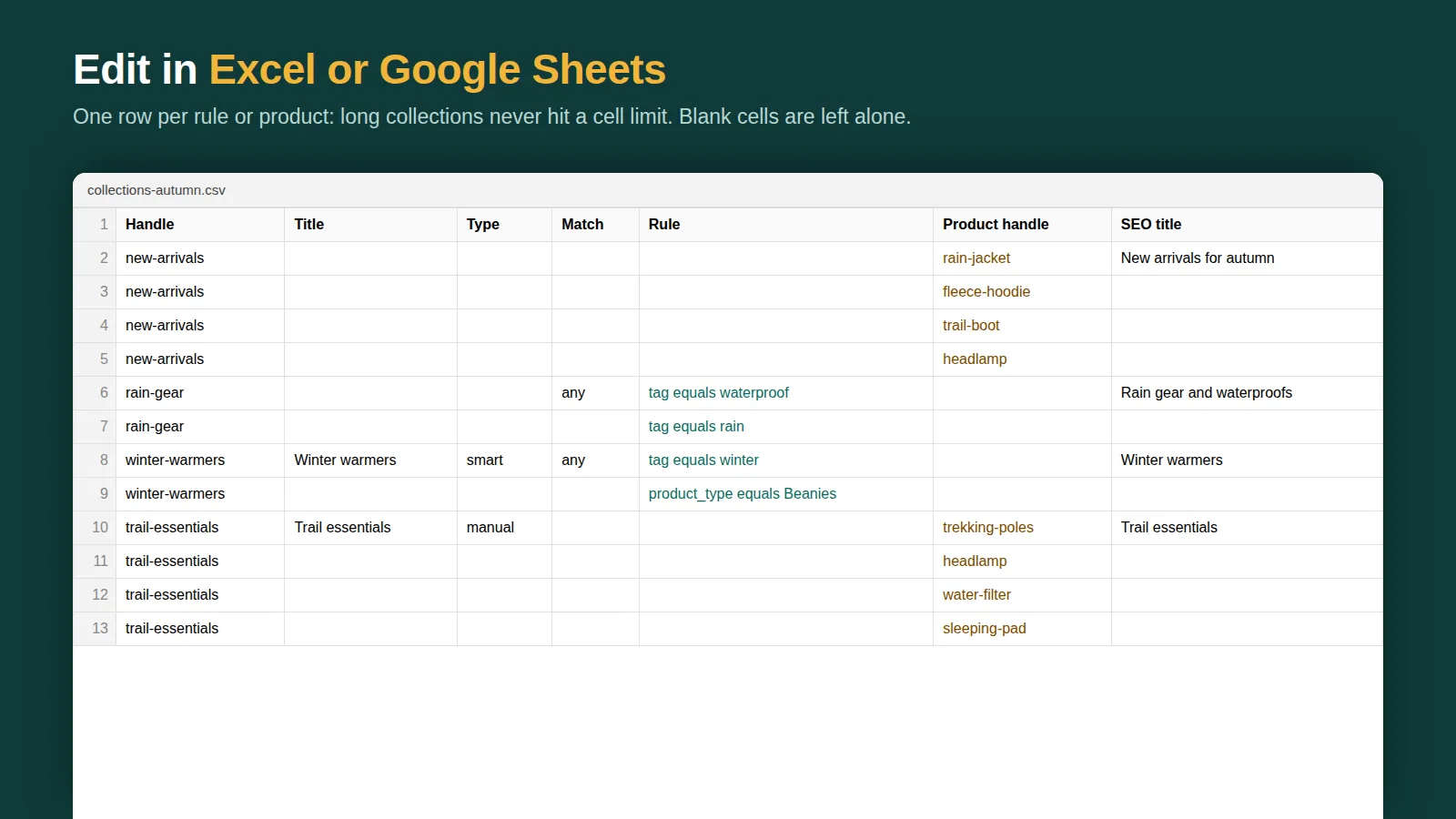
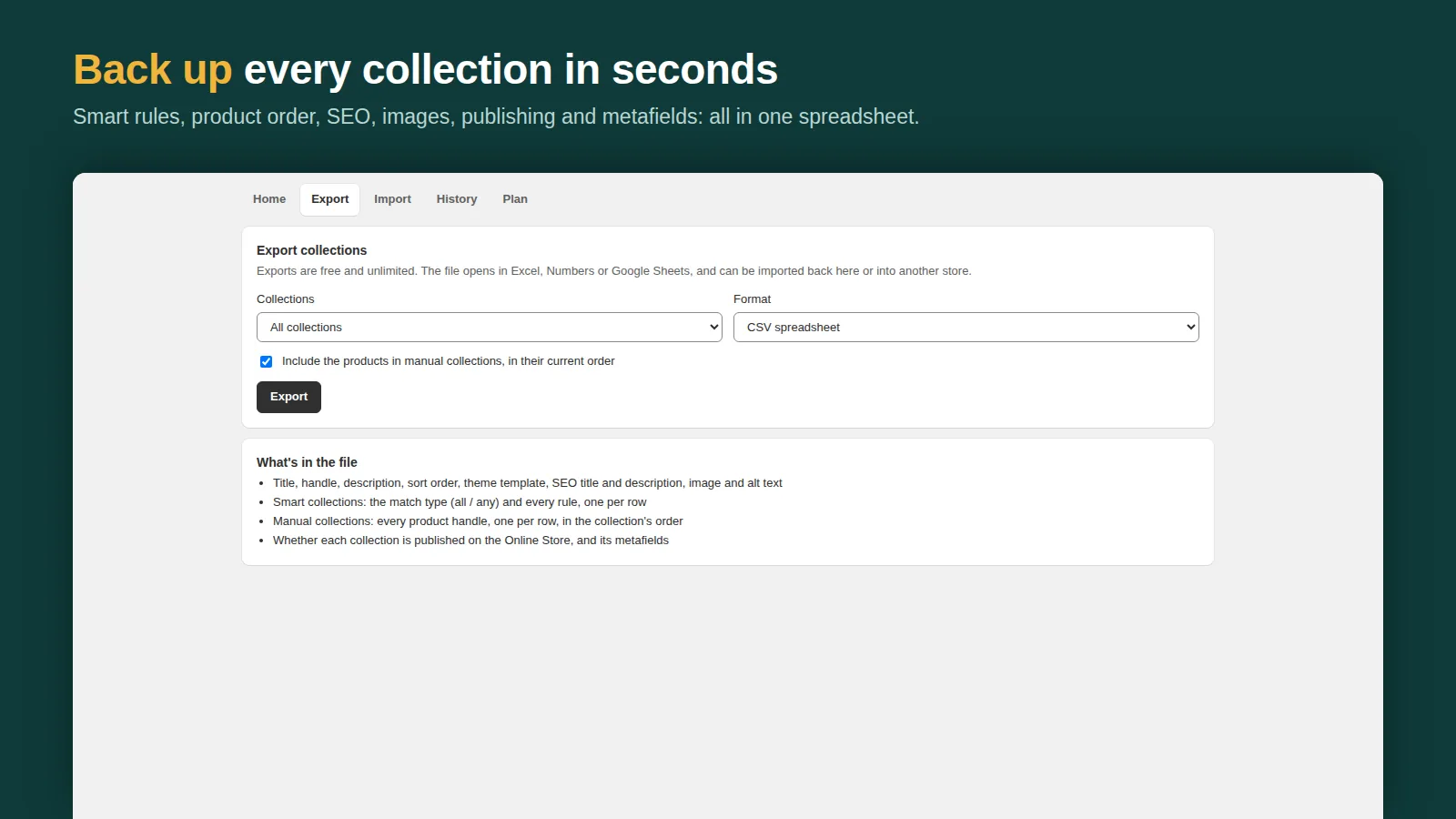
Shelfport exports every collection to Excel (.xlsx), CSV or JSON: smart rules, manual product lists and their order, sort order, SEO, image, publishing and metafields. Install it on both stores, export from the old one and import the file into the new one. Products are matched by handle; any that don't exist in the new store are listed in the preview and skipped. You see every collection that will be created or changed before anything is saved, and the whole import can be undone in one click.
Exports are unlimited on every plan. The free plan imports up to 25 collections per file; Pro ($7.99/month) removes the limit.
Step 3: check the new store
- Open a few smart collections and compare the product counts with the old store. A difference usually means a tag or product type didn't come across.
- Check the navigation menus: menus link to collections by handle, so recreate menus after the collections exist.
- Check URL redirects if the new store replaces the old one.
Related: exporting and importing collections as CSV and the smart collections guide.
Frequently asked questions
Can you export collections in Shopify?
Not natively. The product CSV includes tags and categories but not collections. An app or the Admin API is needed to export collection rules and product lists.
Do products need the same handles in both stores?
Yes, for any tool that copies manual collections. Handles are how products are matched in the new store.