How to convert WebP to JPG (free, no upload)
The fastest way to convert WebP images to JPG — in-browser, private, no signup. Plus quality tips and when to keep WebP instead.
April 12, 2026 · 4 min read
WebP is great for the web — small files, sharp images. But it's a pain when you want to email an image, drop it in a Word doc, or upload to a site that only accepts JPG. Here's how to convert WebP to JPG fast and privately.
Why WebP?
Google created WebP to make web images smaller without quality loss. Chrome, Firefox, Safari, and most modern browsers support it. The downside: many older apps, social platforms, and printers still don't.
The fastest way: in-browser converter
Use a browser-based tool that converts WebP locally — your file never leaves your computer. That's faster than uploading to a server, and way more private.
Save images from websites as JPG in Chrome
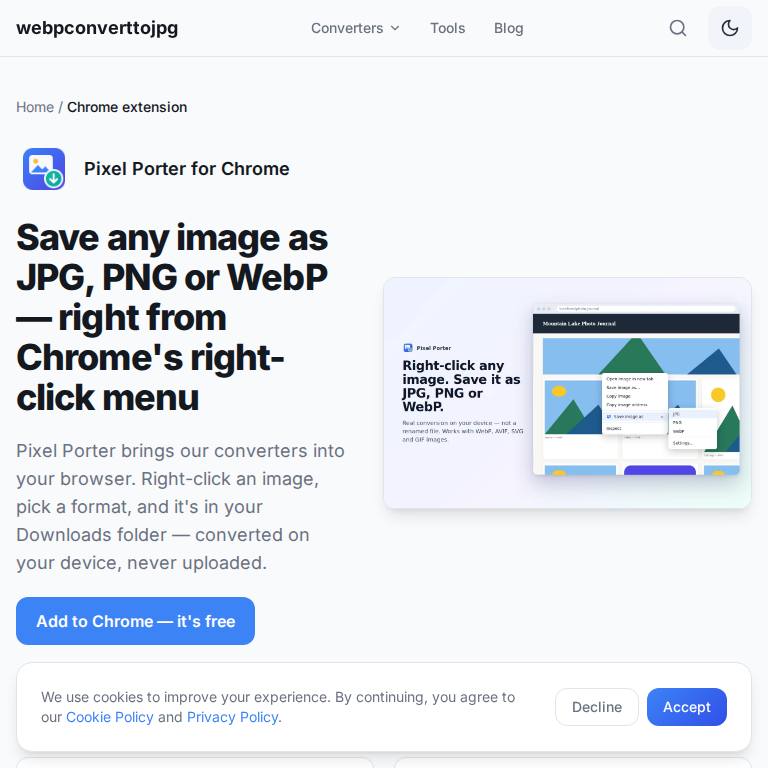
If the WebP files come from websites you browse, skip the download-then-convert step. Our free Chrome extension, Pixel Porter, adds Save image as → JPG, PNG or WebP to the right-click menu and converts on your device. It can also save every image on a page at once. More in our image downloader extension guide.
Other ways to convert WebP to JPG
1. Right-click on Mac
Open in Preview → File → Export → choose JPEG.
2. Right-click on Windows
Open in Paint → File → Save As → JPEG.
3. Photoshop / Affinity / GIMP
File → Export As → JPG. Best for batches with quality control.
Quality settings to know
- 90–100% quality: near-lossless, larger file
- 75–85% quality: web-friendly, small file, looks great
- Below 70%: noticeable artifacts
When to keep WebP instead
If the image is staying on a website, WebP is usually the better choice — smaller files mean faster pages and better SEO. Only convert when the destination doesn't support WebP.
Saving images straight from websites? An image downloader extension for Chrome saves them as JPG or PNG in one step instead of converting afterwards.