Shopify bulk editor guide: bulk edit products, variants and tags
How to bulk edit products in Shopify with bulk actions, the built-in bulk editor and CSV import, what each can't do, and when a bulk editor app with undo is worth it.
September 27, 2026 · 6 min read
Shopify has more bulk editing built in than most merchants realise, but it's spread across three places: bulk actions on the product list, the spreadsheet-style bulk editor, and CSV import. Here's what each one can do, what it can't, and when a dedicated bulk editor app is worth it.
1. Bulk actions on the product list
Go to Products, filter the list, and tick the products you want. The action bar that appears (and its … menu) handles common one-click jobs:
- Set as active, draft or archived
- Add or remove tags
- Add to or remove from manual collections
- Include or exclude from sales channels and markets
- Delete products
These are quick and safe for tags and status. They don't touch prices, inventory, SEO or variant fields.
2. The Shopify bulk editor
- Select products on the Products page and click Bulk edit.
- Use Columns to add the fields you need: price, compare-at price, cost, SKU, barcode, weight, inventory, vendor, product type, tags, SEO title and description, and more.
- Edit cells like a spreadsheet, then Save.
It's ideal for tidying a few dozen products, filling in missing SKUs or fixing a column of weights. It's weaker for rules: there are no formulas ("+10%"), no find-and-replace across titles, no preview of what will change beyond the cells you typed, and no undo after saving. It also only covers products and variants; customers, orders, pages and redirects each have their own, more limited tools.
3. CSV export and import
Products → Export gives you every product and variant as rows you can edit with formulas in Excel or Google Sheets. Products → Import with Overwrite products with matching handles writes the changes back. It's the most flexible free option and the one to use for a big restructure.
The trade-offs: keep an untouched copy of the export as your backup, don't edit the Handle or option columns (that's how rows are matched), don't blank out cells that had values, and remember that metafields and collections aren't fully covered by the product CSV. We cover prices specifically in how to bulk edit prices in Shopify.
Common jobs and the quickest native way
- Bulk edit tags: product list bulk actions (add/remove), or the bulk editor Tags column to replace them.
- Bulk edit variants: the bulk editor shows one row per variant, so price, SKU, barcode and weight are all editable there.
- Bulk edit inventory: the bulk editor's inventory column or Products → Inventory, which also has its own CSV import per location.
- Continue selling when out of stock: the bulk editor's "Continue selling when out of stock" column.
- Bulk change sales channels: product list bulk actions → include/exclude from channels.
- Bulk edit descriptions: the bulk editor Description column for rewrites; a CSV for anything pattern-based.
When an app is worth it
A bulk editor app earns its place when you edit the same kinds of things regularly, need rules instead of typed values, or want a safety net. Look for three things: a preview of every before-and-after value, an undo that actually restores old values, and coverage beyond products if you also clean up customers or orders.
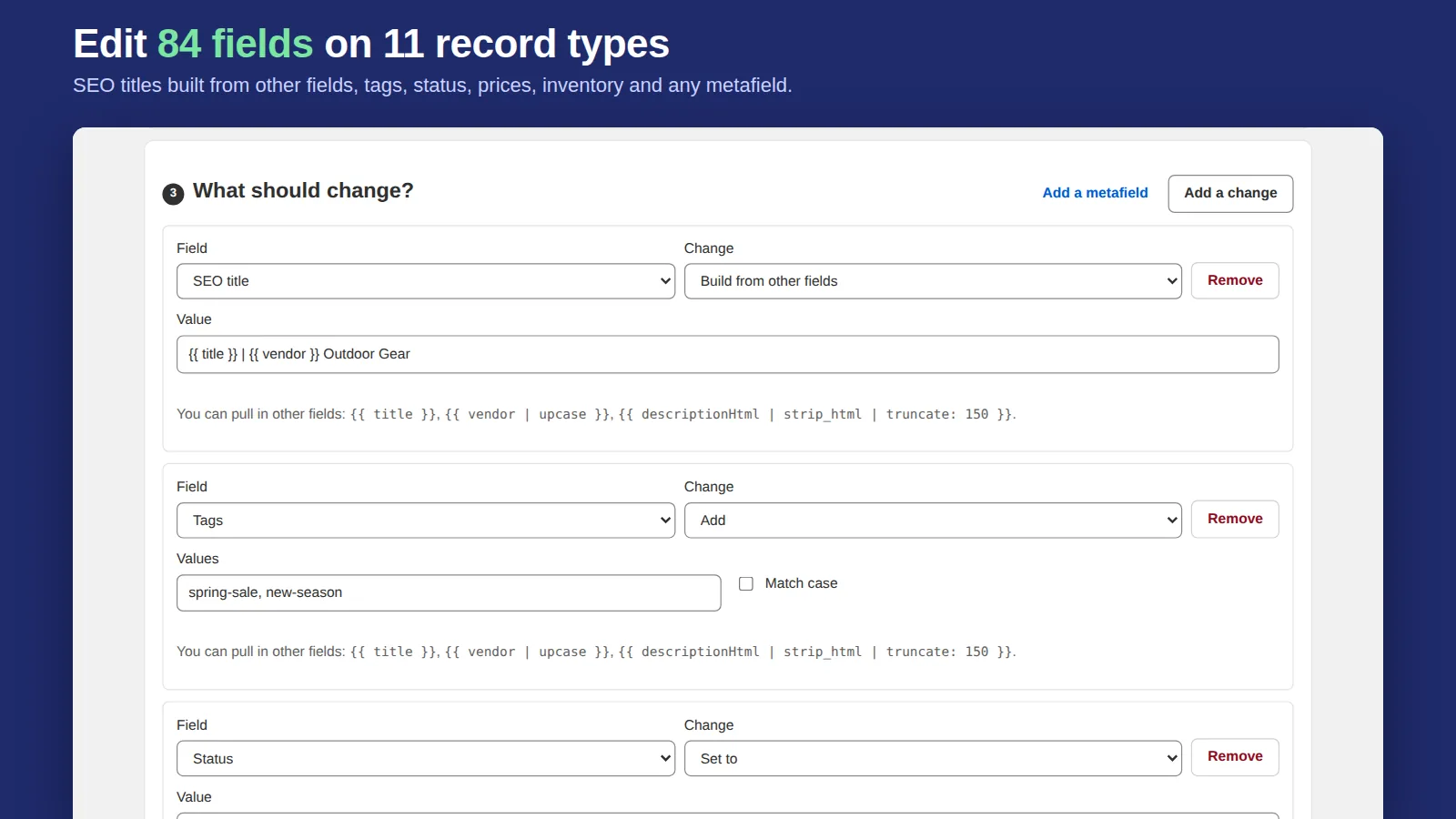
That's the brief we gave ourselves for Bulk Edit Everything: 84 fields across 11 record types (products, variants, collections, customers, orders, draft orders, pages, blog posts, files and redirects) plus every metafield; filters using Shopify search; percentage and rounding rules; SEO templates; scheduling; and one-click undo for every task. Tasks keep running after you close the tab.
Safety checklist for any bulk edit
- Export a CSV backup first, whichever tool you use.
- Filter tightly. It's easy to include drafts or archived products by accident.
- Try the change on two or three products, check the storefront, then run it on the rest.
- Avoid bulk edits during a busy sales period, when a mistake is most expensive.
Related: bulk editing and renaming tags, scheduling a sale and backing up your Shopify store.
Step-by-step: compare-at prices, variants, inventory, and the best bulk edit apps compared.