How to bulk edit inventory in Shopify
Update stock for many Shopify products at once: the Inventory page, the bulk editor, the inventory CSV, tracking and out-of-stock settings, and a faster way with undo.
October 11, 2026 · 5 min read
Disclosure: we make Bulk Edit Everything, mentioned below. The native methods are free.
After a stock count, a supplier delivery or a move to a new warehouse, you need to change inventory on many products at once. Shopify gives you three free ways. Pick by how many items and locations you're changing.
Before you start: quantity, tracking and the out-of-stock setting
- Available / On hand is the number of units at a location. Committed units (in unfulfilled orders) are counted separately.
- Track quantity must be on for Shopify to count stock for a variant.
- Continue selling when out of stock lets customers buy at zero (pre-orders, made-to-order). Off means the variant shows Sold out.
Method 1: the Inventory page (built in)
- Go to Products → Inventory and choose the location at the top.
- Filter or search for the variants.
- Type the new number in the Available or On hand column, or use the field to add or subtract (e.g. +12 for a delivery).
- Click Save.
Good for a delivery of a few dozen lines. One location at a time.
Method 2: the bulk editor
Select products, click Bulk edit, and add the inventory columns for a location, plus Track quantity and Continue selling when out of stock. Useful for switching tracking on or off for many variants, or setting the out-of-stock policy across a collection.
Method 3: the inventory CSV
- On the Inventory page, click Export to get a CSV with one row per variant and location.
- Edit the quantity columns in a spreadsheet. Don't change the handle, option or SKU columns: they're how Shopify matches rows.
- Click Import and upload the file. Shopify shows a summary before applying it.
The CSV sets the numbers you type, so stock sold between your export and your import is overwritten. Import straight after a count, or during a quiet hour.
Jobs the native tools make awkward
- Setting every variant of a vendor to continue selling for a pre-order run, then switching it back.
- Zeroing stock for a discontinued range across a filter like
vendor:Acme tag:discontinued. - Turning on tracking for hundreds of variants that were created without it.
- Undoing a bad import: Shopify keeps an adjustment history per item, but there's no one-click rollback.
The faster way: filter, change, preview, undo
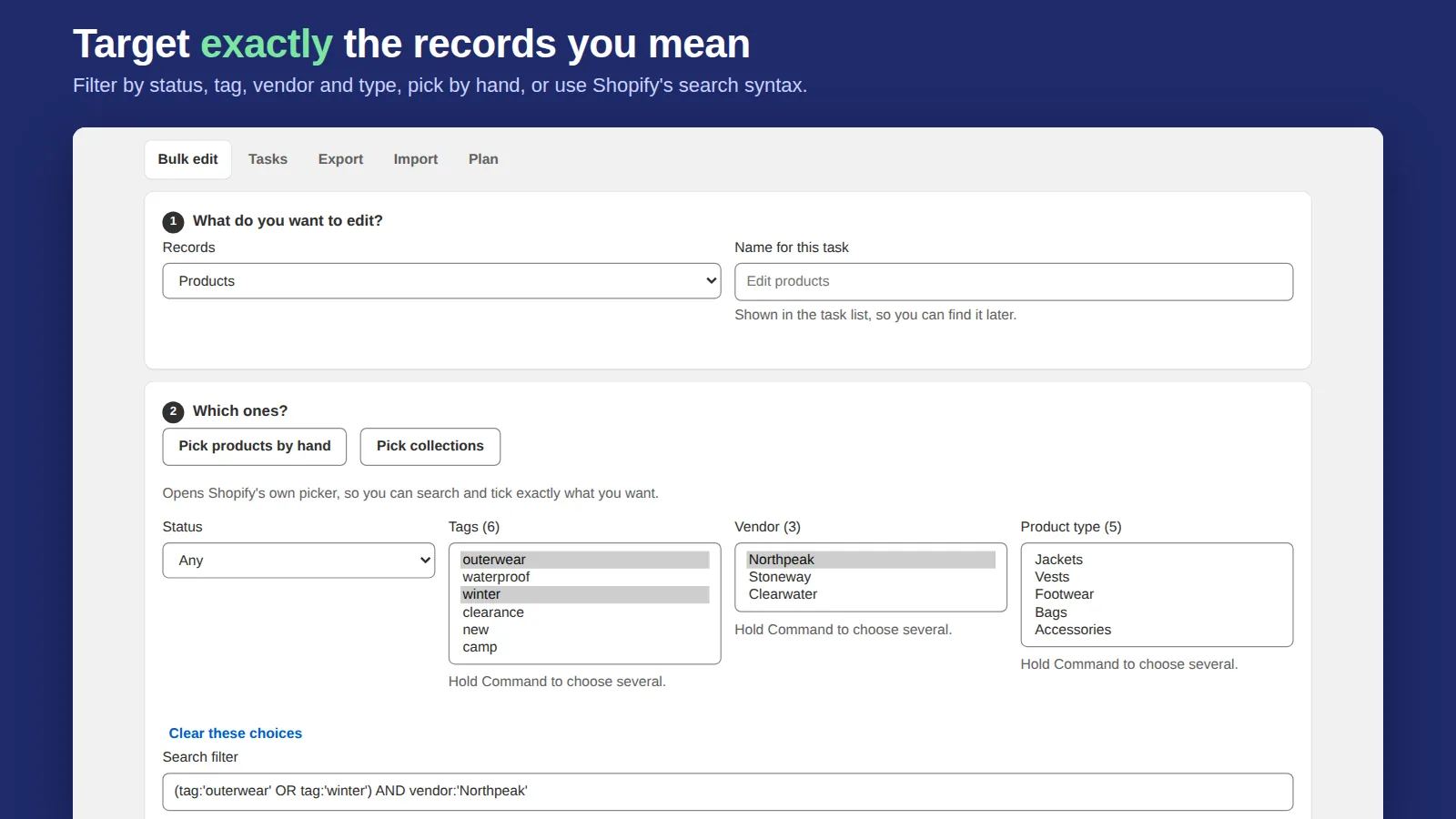
Bulk Edit Everything edits Quantity on hand per location, Track quantity and the out-of-stock policy for any set of variants you can describe with Shopify search. You see each variant's before and after, run it, and undo the whole task in one click if the filter caught more than you meant. SKU, barcode, cost and weight are editable in the same task.
Related: bulk editing variants and the full Shopify bulk editor guide.
Frequently asked questions
How do I update inventory for many products in Shopify?
Use Products, Inventory for a single location, the bulk editor's inventory columns, or export the inventory CSV, edit the quantities and import it back.
How do I turn on continue selling when out of stock for all products?
Select the products, open Bulk edit, add the Continue selling when out of stock column and tick it for each variant. A bulk editor app can set it for every variant matching a filter in one task.