How to bulk edit compare-at prices in Shopify (start and end a sale)
Put products on sale in Shopify by bulk editing compare-at prices: the bulk editor, a CSV with formulas, clearing compare-at after a sale, and a one-task method with undo.
October 11, 2026 · 5 min read
Disclosure: we make Bulk Edit Everything, mentioned below. The native methods are free.
In Shopify, a "sale" price is just two numbers: the price the customer pays and a higher compare-at price shown crossed out. Most themes add a Sale badge whenever compare-at is higher than price. So putting a range on sale, or taking it off sale, means editing compare-at prices on lots of variants at once.
The usual sale move: copy price to compare-at, then lower price
For a 20% sale on items that currently sell at full price:
- Set compare-at price = current price (so the original price shows crossed out).
- Lower the price by 20%.
- After the sale: set price = compare-at price, then clear compare-at.
Order matters. If you lower the price first, you've lost the original number you needed for compare-at.
Method 1: the bulk editor (built in)
- Go to Products, filter to the products on sale, select them and click Bulk edit.
- Use Columns to add Price and Compare-at price. Each variant gets its own row.
- Type the old price into compare-at for each row (you can paste a value down a column), then type the new prices.
- Click Save.
There's no formula, so "20% off" means working out each price yourself. It's fine for a couple of dozen variants.
Method 2: CSV export and import
- Export the products from Products → Export as a CSV.
- In a spreadsheet, copy the
Variant Pricecolumn intoVariant Compare At Price. - Replace
Variant Pricewith a formula, e.g.=ROUND(H2*0.8,2), then paste values. - Keep the
Handlecolumn, delete columns you didn't change if you want to be safe, and import with Overwrite products with matching handles.
This scales, but a wrong column or a stray row overwrites live data, and there's no undo. Export a backup first (our backup guide covers it).
Clearing compare-at prices after a sale
In the bulk editor, blank the compare-at cells. In a CSV, empty the Variant Compare At Price column. Don't set compare-at to 0: some themes treat 0 as "no compare-at" and some don't.
Common mistakes
- Compare-at lower than price. Shoppers see nothing, or a confusing "sale" on some themes. Filter for it after any change.
- Fake reference prices. In many countries the crossed-out price must be one you genuinely charged. Check the rules where you sell.
- Forgetting to end the sale. A scheduled automatic discount ends itself; manual price changes don't. See how to schedule a sale.
The faster way: one task with preview, schedule and undo
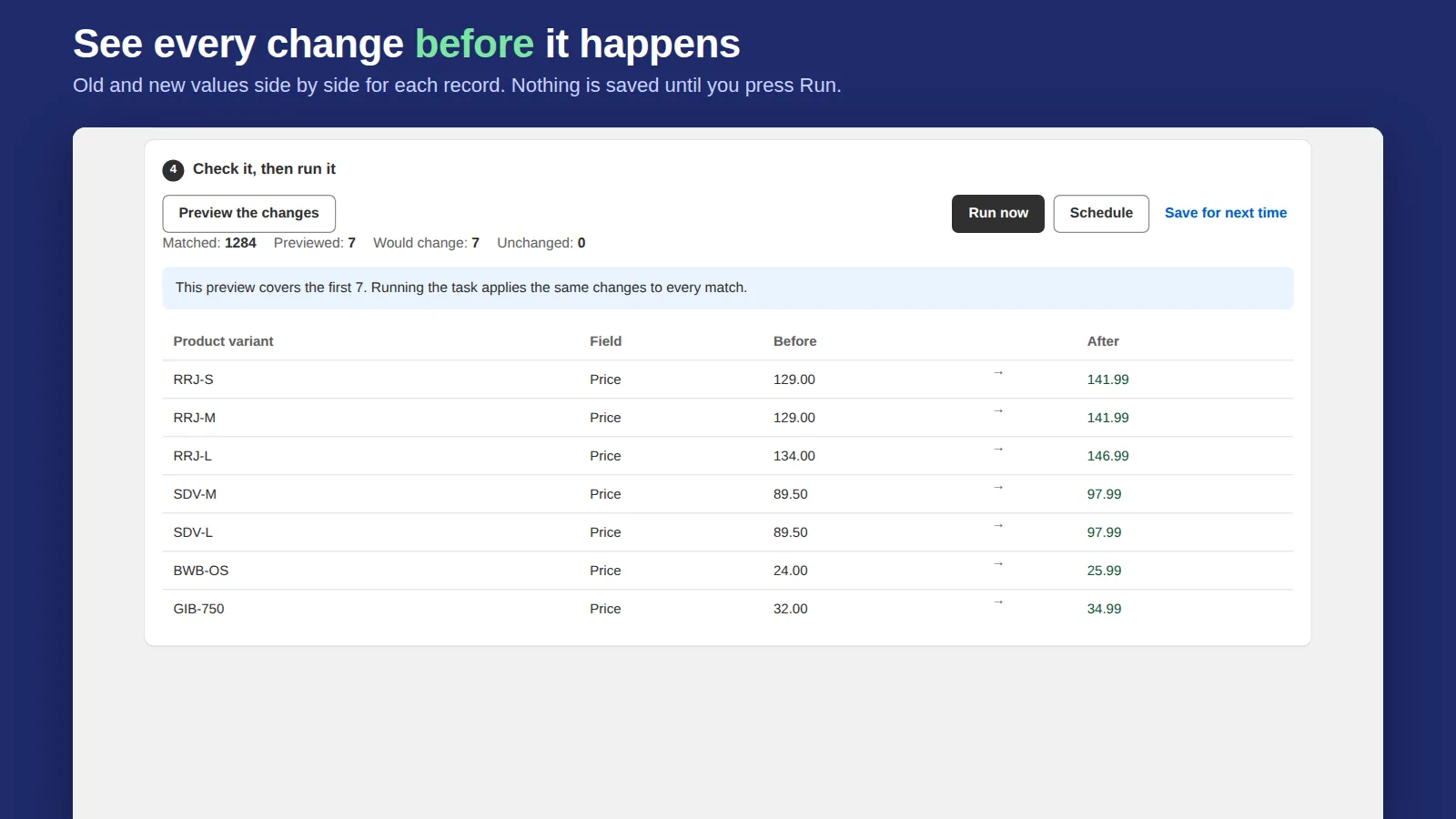
Bulk Edit Everything does the sale move as one task: pick the variants with Shopify's search filters, set Compare-at price → copy from Price, then Price → decrease by 20% → round to .99. The preview shows every variant's before and after, and nothing is saved until you run it. On Starter and Pro you can schedule it to start and end on time. Any task can be undone in one click.
Related: how to bulk edit prices in Shopify and bulk editing variants.
Frequently asked questions
What is compare-at price in Shopify?
A higher reference price shown crossed out next to the real price. Most themes show a Sale badge when compare-at is higher than price.
How do I remove compare-at prices in bulk?
Blank the Compare-at price column in the bulk editor, or empty the Variant Compare At Price column in a product CSV and import it with overwrite.
Can I set compare-at price to the current price for many products?
Natively you type or paste it per variant, or copy the column in a CSV. A bulk editor app can copy Price into Compare-at for every selected variant in one task.