How to use your phone as a PC remote: 4 free ways compared (2026)
Remote desktop, KDE Connect, Phone Link or a phone button deck: which free tool turns your phone into a remote for your Windows PC or Mac, and how to set one up.
October 3, 2026 · 6 min read
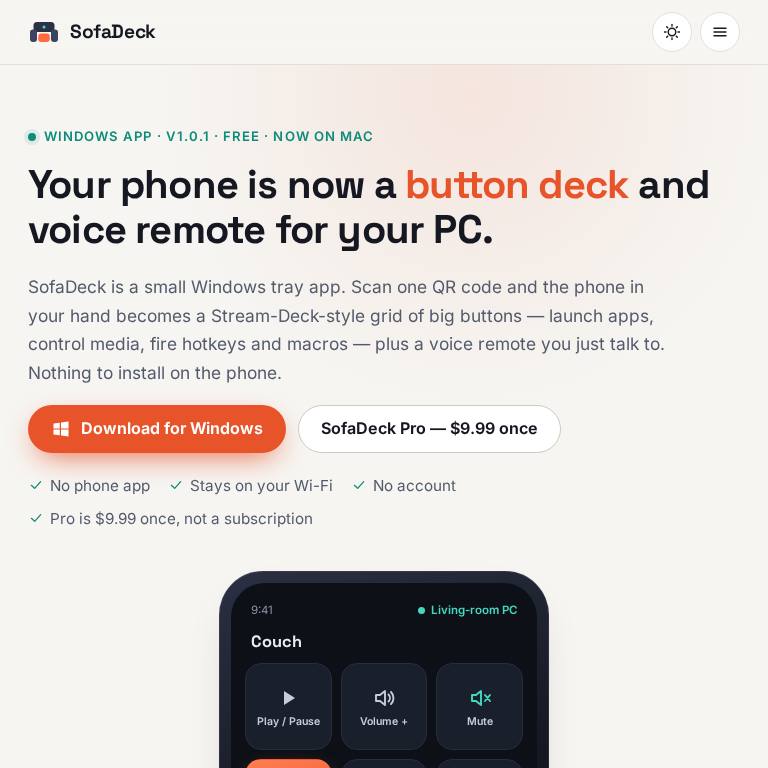
"Use my phone as a PC remote" can mean very different things. Some people want to see and drive the whole desktop from the phone. Others are on the couch with a media PC and just want play, pause, volume and "open Netflix". Others want a Stream-Deck-style pad of buttons for hotkeys and macros. Each of those has a different best tool, and most are free. Here are the main options, what each is good at, and how to set up the one we make.
The options at a glance
| Tool | What the phone shows | Phone app needed | Best for |
|---|---|---|---|
| Chrome Remote Desktop (Google) | The full desktop | Yes, or a browser | Fixing something on your PC from anywhere |
| KDE Connect (open source) | Media controls, touchpad, keyboard, file sharing | Yes, on both phone and PC | An all-round link between an Android phone and a computer |
| Microsoft Phone Link | Your phone on the PC (texts, calls, notifications) | Yes | Using the phone from the PC, not the other way round |
| SofaDeck (ours) | A grid of big buttons plus push-to-talk voice | No, it runs in the phone's browser | Couch, media-PC and arcade-cabinet control; hotkeys and macros |
If you need the whole screen: remote desktop
Remote desktop tools such as Google's Chrome Remote Desktop mirror your PC's screen to the phone and let you tap and type on it. That's ideal when you need to reach a file or fix a setting while you're away from home. It's awkward as a living-room remote: a 27-inch desktop squeezed onto a phone means pinching and zooming to hit a pause button.
If you want a general phone-and-PC link: KDE Connect
KDE Connect is a free, open-source project that pairs a phone with a computer on the same network. You install it on both devices. It can control media players, turn the phone into a touchpad and keyboard, share files and sync notifications. It suits people who want one tool for many small jobs and don't mind installing and configuring it.
If you want buttons and voice: a phone deck
A phone deck turns the phone into a pad of large, labelled buttons, like a Stream Deck keypad but on a device you already own. One tap opens an app or site, sends a hotkey, mutes, changes volume or runs a macro. It's the fastest option when you know what you want to do and don't need to see the desktop.
SofaDeck, which we make, works this way. It started as the remote for our own LaunchBox and Big Box arcade cabinet:
- a tray app on Windows 10/11 and a menu-bar app on macOS 11 or later (Apple silicon and Intel);
- the phone opens the deck in its browser after you scan a QR code and approve it on the computer, so there's nothing to install on the phone, iPhone or Android;
- buttons launch apps and websites, send hotkeys, control media and volume, and run macros;
- a push-to-talk voice remote understands commands like "volume down" and the name of any button;
- it stays on your home network: no account, no cloud relay, no telemetry;
- free, with an optional one-time $9.99 SofaDeck Pro license for unlimited pages and macros. No subscription.
Set up SofaDeck in five minutes
- Download it from sofadeck.com/download (Windows installer or zip, or a notarized Mac disk image). Windows users can also get it from the Microsoft Store, and Mac users with Homebrew can run
brew install --cask stefanodixon-ux/tap/sofadeck. - Start it. On a Mac, click Allow when macOS asks about finding devices on your local network.
- Scan the QR code it shows with the phone's camera, then approve the phone on the computer.
- Add buttons for the apps, sites and hotkeys you use most, and try the voice button.
On a Mac and weighing it against Elgato's own app? Our Stream Deck on Mac guide compares the hardware, Stream Deck Mobile and SofaDeck. The full feature comparison is on sofadeck.com.
Which one should you pick?
- Away from home and need the desktop: a remote desktop tool.
- Android phone, want many small integrations: KDE Connect.
- Texts and calls on the PC: Phone Link.
- Couch, media PC, arcade cabinet or streaming hotkeys, any phone: SofaDeck.
Nothing stops you from using two. Plenty of people keep remote desktop for emergencies and a button deck for everyday use.
Frequently asked questions
Can I use my phone as a remote for my PC?
Yes. Remote desktop tools mirror the whole screen, KDE Connect adds media controls and a touchpad, and a phone deck such as SofaDeck gives you big buttons and voice commands for apps, hotkeys and volume.
Do I need to install an app on my phone?
For most remote tools, yes. SofaDeck is the exception: it runs on the computer and the phone opens it in its browser after scanning a QR code.
Does it work with an iPhone and a Mac?
SofaDeck works with any phone browser, iPhone or Android, and runs on Windows 10/11 and macOS 11 or later.
Is SofaDeck free?
Yes. The free version keeps working without paying. SofaDeck Pro is an optional one-time $9.99 license that adds unlimited pages and macros; there is no subscription.