How to sort products in a Shopify collection (and change it in bulk)
Set a Shopify collection's sort order, drag products into a manual order, pick the right order for each collection, and change sorting across many collections at once.
October 11, 2026 · 5 min read
Disclosure: we make Shelfport, mentioned below. The native steps are free.
The order products appear in on a collection page is one of the cheapest conversion levers you have. Shoppers rarely scroll far. Shopify gives every collection a default sort order and, for hand-picked order, a drag-and-drop list.
Change a collection's sort order
- Go to Products → Collections and open the collection.
- In the Products section, open the Sort menu.
- Choose an order: Best selling, Product title A–Z or Z–A, Highest or Lowest price, Newest or Oldest, or Manually.
- Save.
This is the default order. Shoppers can still re-sort on the storefront if your theme shows a sort menu.
Sort manually (drag and drop)
- Set Sort to Manually.
- Drag products in the list into the order you want.
- Save, and check the collection page.
Manual sorting works for manual and smart collections. In a smart collection, new products that match the rules are added at the end, so revisit the order after big product drops.
Which sort order to use
- Best selling for most category collections: it updates itself.
- Newest for "New in" and drops.
- Manual for curated edits, gift guides and the homepage collection.
- Price low to high for "Under $25" and budget collections.
Where manual sorting gets painful
- Dragging one product from position 180 to 3 in a long list.
- Applying the same order to the same products in several collections.
- Changing the sort setting on 50 collections at once (e.g. all to Best selling).
- Restoring the old order after someone rearranges it.
Dedicated sorting apps (Jedi Collection Sort, for example) re-sort collections automatically by sales, stock or margin. If you want hands-off ranking, that's the category to look at.
Sorting in a spreadsheet
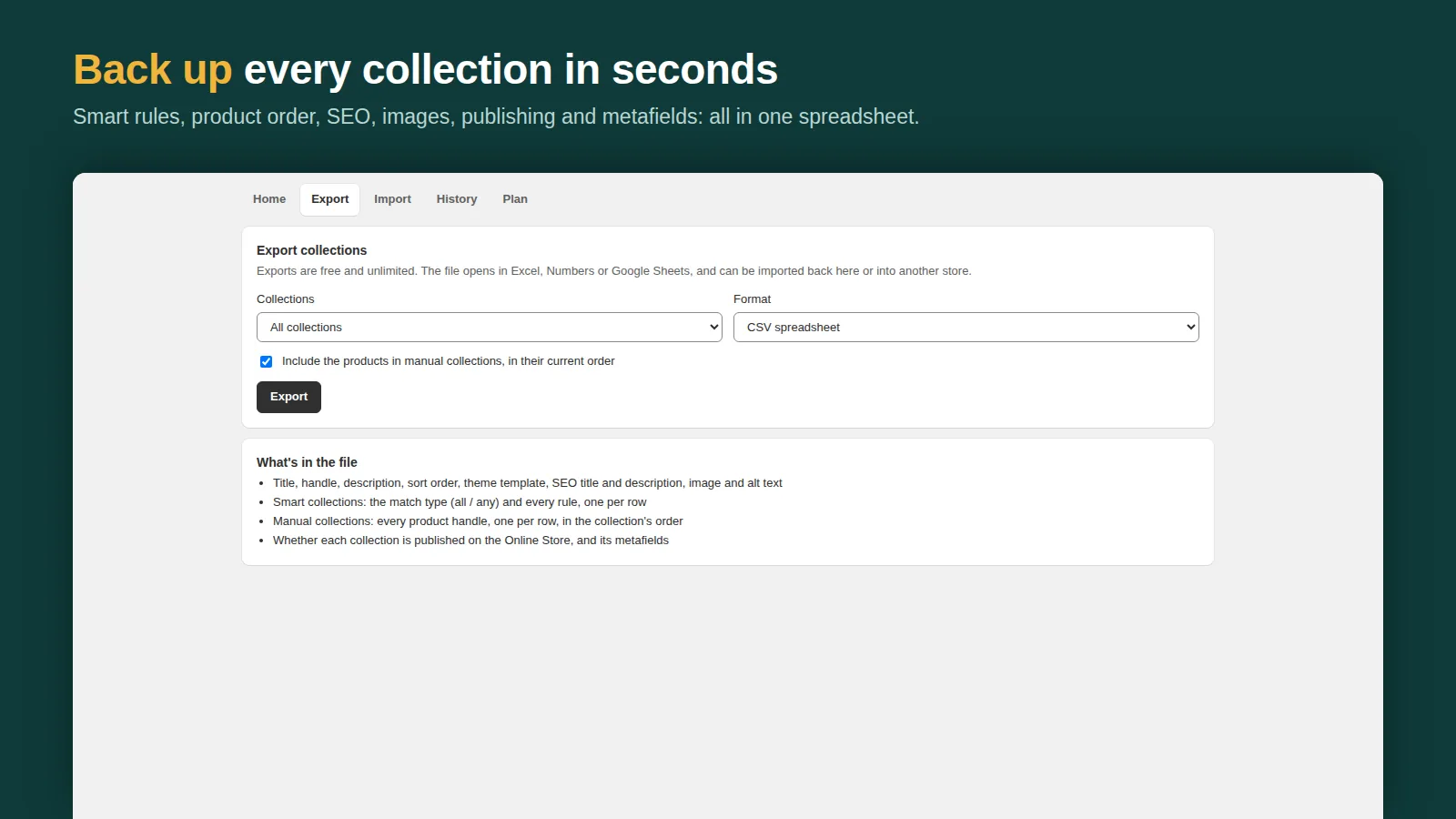
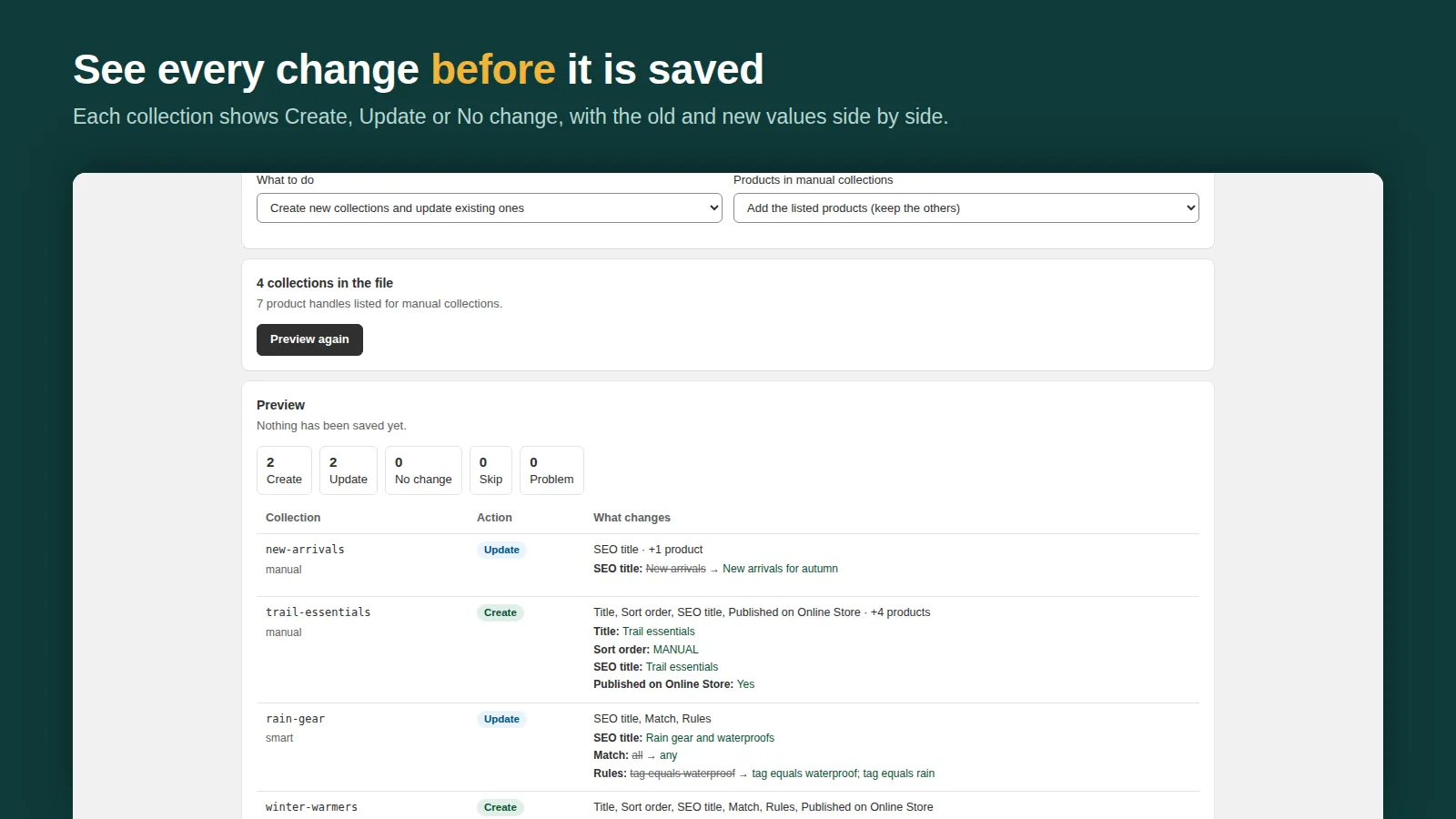
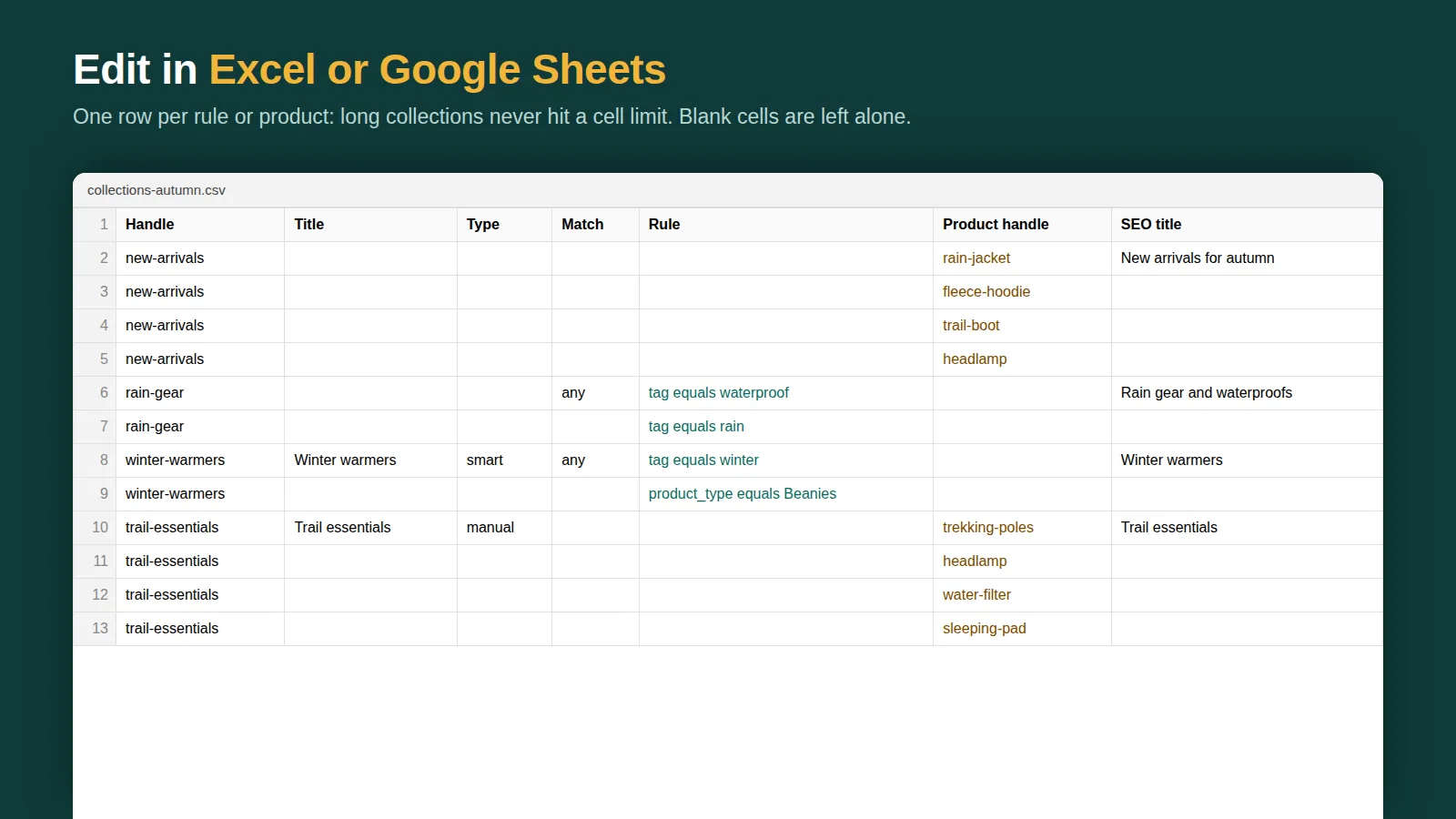
For one-off reorganising, a spreadsheet is faster than dragging. Shelfport exports every collection with its sort order setting and, for manual collections, the products in order, one per row. Change the sort setting for many collections in one column, or reorder rows, then import. The preview shows what changes, and the import can be undone in one click, which also makes an export a handy backup of your current order.
Related: smart collections guide and creating collections in bulk.
Frequently asked questions
How do I change the order of products in a Shopify collection?
Open the collection, set Sort to Manually, drag the products into order and save. Or choose an automatic order like Best selling or Newest.
Can smart collections be sorted manually?
Yes. Set the sort to Manually and drag. New products that match the rules are added at the end.
Can I change the sort order of many collections at once?
Not natively; each collection is edited on its own. A collection export/import app or the Admin API can change many at once.