How to export collections from Shopify to CSV, and import them back
Shopify has no CSV export for collections. Here's how to back up, edit, import and copy collections between stores, keeping smart rules, product order and SEO.
September 27, 2026 · 7 min read
Shopify can export products, customers and orders to CSV, so it's a surprise to find there's no Export button on the Collections page. If you want to back up your collections, edit them in a spreadsheet, create a batch of smart collections, or copy them to another store, you need a workaround. Here are the options, native first.
What a collection actually contains
Before choosing a method, know what you'd lose if it isn't copied:
- Type: manual (you pick the products) or smart (products match rules such as "tag equals summer").
- Smart rules and whether products must match all rules or any rule.
- Product list and sort order for manual collections, including a hand-arranged order.
- Title, description, handle, image, SEO title and description, template.
- Publishing to sales channels, and any metafields.
Native option 1: recreate by hand
For a few collections, Products → Collections → Create collection is fine. Copy the rules exactly (condition, relation and value), then check the product count matches the original. It doesn't scale, and it's easy to miss SEO fields and images.
Native option 2: the product CSV (partly)
The product CSV is about products, not collections. You can prepare products so smart collections pick them up (for example, by setting tags, vendor or product type in the CSV, which smart rules can match), but the file can't create a collection, set its rules, its sort order or its SEO. It's useful as a helper, not as a collection export.
Native option 3: the Admin API
Developers can read and write collections through Shopify's GraphQL Admin API (collections, collectionCreate, collectionUpdate). That's how every collection tool works under the hood. It's a real option if you have a developer, but it's code, not a spreadsheet.
With an app: export, edit, preview, import, undo
We built Shelfport: Collection Import to be the missing collection CSV. The workflow:
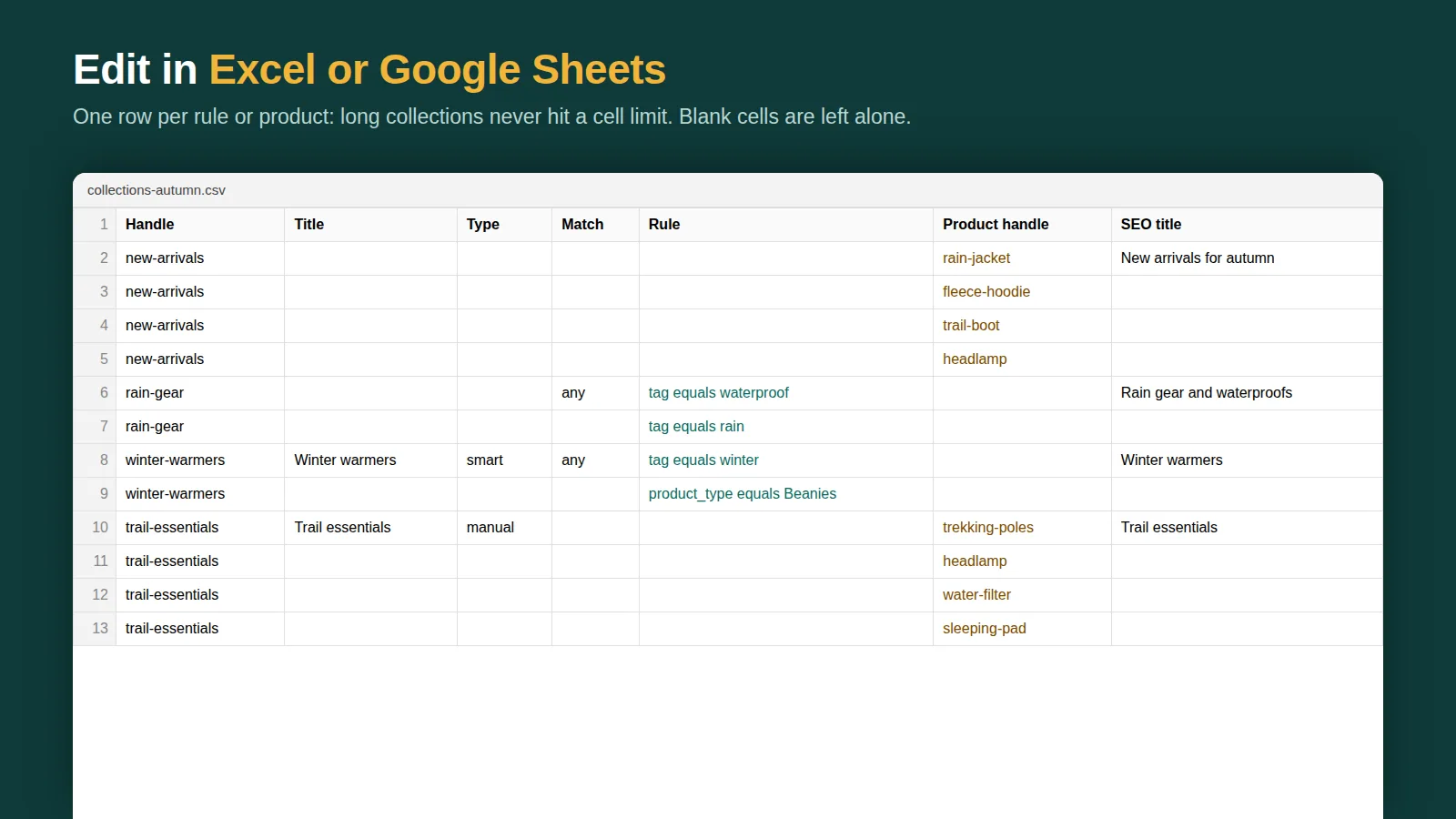
- Export. Download every collection (or only smart or manual ones) as a CSV or a full backup, with smart rules, product order, SEO, image, publishing and metafields. Rules and product handles are one per row, so the sheet stays readable.
- Edit. Open it in Excel or Google Sheets. Change titles or SEO, adjust rules, or add rows for new collections. You can also start from a template. Blank cells are left as they are; write
[clear]to empty a field. - Preview. Upload the file. Each collection shows Create, Update or No change with before-and-after values. Nothing is saved yet.
- Import, and undo if needed. Press Import. If you change your mind, History → Undo deletes the collections the import created and restores the ones it changed.
Exports and backups are unlimited on the free plan, which makes it a simple way to keep a collection backup.
Copying collections between Shopify stores
Moving to a new store, opening a regional store, or setting up a wholesale store? The same file works:
- Copy products first. Collections refer to products, so import your products into the new store (Products → Export, then Import there).
- Keep handles the same. Products are matched by handle. If handles differ between stores, manual collections can't find their products.
- Export collections from the old store and import into the new one. The preview shows exactly what will be created before anything is saved.
- Check smart collections. They fill themselves from rules, so if a count looks low, the products are usually missing a tag, vendor or type the rule expects.
Tips for smart collections in a spreadsheet
- Build a brand-by-category grid (for example "Acme Boots", "Acme Jackets") as rows with two rules each: vendor equals Acme, product type equals Boots.
- Use consistent tags. Smart collections are only as clean as the tags they match.
- Write SEO titles and descriptions in the sheet while you're there; collection pages are some of the best-ranking pages on most stores.
Need to change products in bulk too? See our Shopify bulk editor guide.
Building collections from rules? Read our smart collections guide, and see how to back up your Shopify store for everything else Shopify doesn't export.
Related: copy collections to another store, create collections in bulk, collection sort order and collection import/export apps compared.