How to restore a deleted collection in Shopify (and back them up)
Shopify has no undo for deleted collections. How to rebuild one with the same handle, undo a bad import, and back up collections so a restore takes two presses.
October 23, 2026 · 4 min read
There is no recycle bin for collections in Shopify. Delete one, or let an app or a CSV import rewrite its rules and product order, and the admin has no "restore" button. What you can get back depends entirely on whether a copy of the collection existed somewhere before the change. Here's what to do right now, and how to make the next one a two-press fix.
If you just deleted a collection
- Look for a copy. A collection export from an app (Shelfport, Matrixify and others), a theme preview tab still open on the old collection page, or an old browser tab of the collection editor. Anything that shows the title, handle, rules or product list helps.
- Recreate it with the same handle. Keep the old URL (
/collections/summer-sale) so links, menus and search rankings keep working. If the handle is taken by a new collection, add a URL redirect from the old path. - Smart collection: re-enter the rules and the sort order. Manual collection: add the products back and drag them into order, which is the slow part without a file.
- Re-add it to menus (Content → Menus) and check any theme sections that pointed at it.
Shopify Support can't restore deleted store content, and Shopify's own product CSV doesn't include collection membership or rules, so a product export won't rebuild it.
If a collection was changed, not deleted
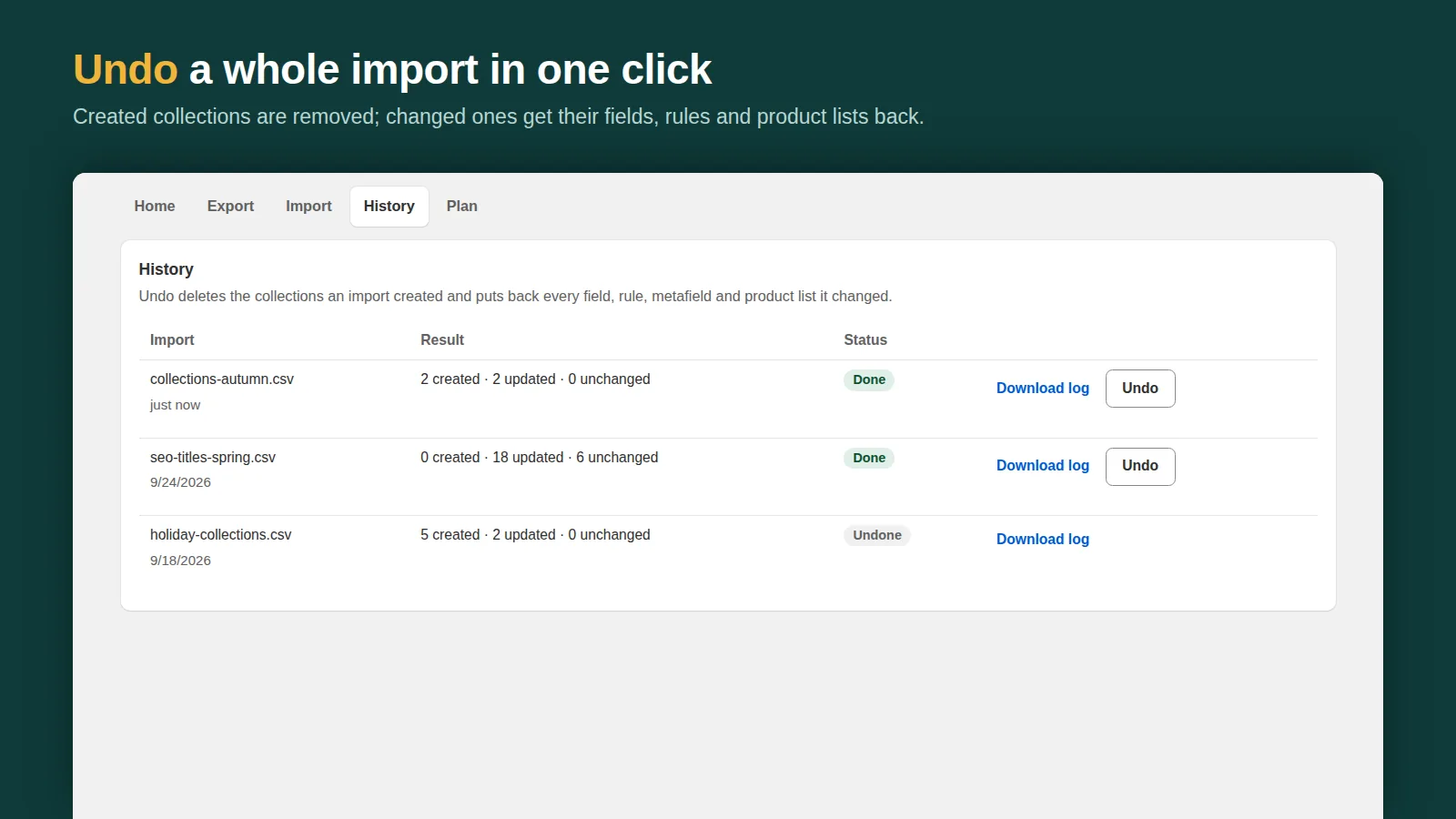
If the change came from an import with an undo (Shelfport keeps one for every import, 7 days on Free and 30 on Pro), undo that import from History: the rules, product list, SEO and image come back. Otherwise you're in the same place as a deletion: you need a copy from before.
Make the next one a two-press fix
Shelfport saves a copy of every collection, with its smart rules, product order, SEO, image, publishing and metafields:
- Every full export is kept in the app's Backups tab (the 3 newest on Free).
- Automatic daily or weekly backups on Pro, kept for 30 days.
- Restore loads a backup into the import preview with product lists made exact. You see which collections will be recreated and which will change before anything is written, and the restore can itself be undone.
A simple backup routine
- Turn on daily backups (or export weekly on Free) and before every big catalogue change.
- Before installing or removing a merchandising or SEO app, take one more backup.
- Keep the downloaded file somewhere outside Shopify too if your business needs a long-term archive.
More: how to back up a Shopify store, export and import collections by CSV and collection sort order.
Frequently asked questions
Can Shopify Support restore a deleted collection?
No. Deleted collections can't be recovered from the admin or by support; you rebuild them from a copy, ideally with the same handle so links keep working.
Does a product CSV export include collections?
No. It has no smart-collection rules, manual product order or collection SEO, so it can't rebuild a collection. A collection export app can.
How do I back up collections automatically?
Shelfport Pro saves every collection daily or weekly and keeps 30 days of backups. Restore shows every change in a preview before anything is written.