How to bulk edit prices in Shopify (3 ways)
Three ways to change many Shopify prices at once: the built-in bulk editor, CSV export with spreadsheet formulas, and a bulk price editor app with preview and undo.
September 27, 2026 · 6 min read
Changing one price in Shopify takes seconds. Changing 400 of them for a sale, a supplier increase or a new margin target is where the admin slows down. There are three practical ways to do it, and the right one depends on how many prices you're changing and whether the new price is a simple number or a calculation.
Before you start: price vs compare-at price
Every variant has a Price (what the customer pays) and an optional Compare-at price (the crossed-out "was" price). To run a sale, most stores copy the current price into compare-at and lower the price. To end the sale, they copy it back and clear compare-at. Keep that in mind: a sale is usually two columns changing, not one.
Way 1: Shopify's built-in bulk editor (best for a few dozen products)
- In your Shopify admin go to Products.
- Filter the list (by vendor, product type, tag, collection or status) so only the products you want are showing.
- Tick the checkbox at the top to select them, then click Bulk edit.
- In the spreadsheet-style editor, use Columns to add Price and Compare-at price if they aren't already there.
- Type or paste the new values into each cell, then click Save.
It's free and already in your admin. The limits: there are no formulas, so "raise everything 8%" means working out and typing every new price yourself; there's no preview of the result beyond what you typed; and there's no undo once you save. For a handful of products that's fine.
Way 2: export to CSV, change prices with formulas, import back
This is the classic way to do percentage changes with nothing but Shopify and a spreadsheet.
- Products → Export. Choose the products (all, current page, selected, or the current search) and "CSV for Excel, Numbers, or other spreadsheet programs".
- Save an untouched copy of the file. It's your only backup if something goes wrong.
- Open the other copy in Excel or Google Sheets. Each variant is one row. The columns you want are Variant Price and Variant Compare At Price.
- Add a helper column with a formula, for example
=ROUND(H2*1.08,0)-0.01for "+8%, ending in .99", fill it down, then paste it back into Variant Price as values. - Products → Import, choose the file and tick Overwrite products with matching handles. Review the summary Shopify shows, then import.
Watch out for three things. Don't change the Handle or option columns, because that's how Shopify matches rows to existing products and variants. Don't leave cells blank that used to have values; with overwrite on, a blank can clear the existing value. And keep the file's encoding as UTF-8 when you save, or product titles with accents can come back garbled.
CSV works well for one big change, but reversing it means importing your backup file again, and anything you edited in the admin in the meantime gets overwritten too.
Way 3: a bulk price editor app (percentages, rounding, schedules and undo)
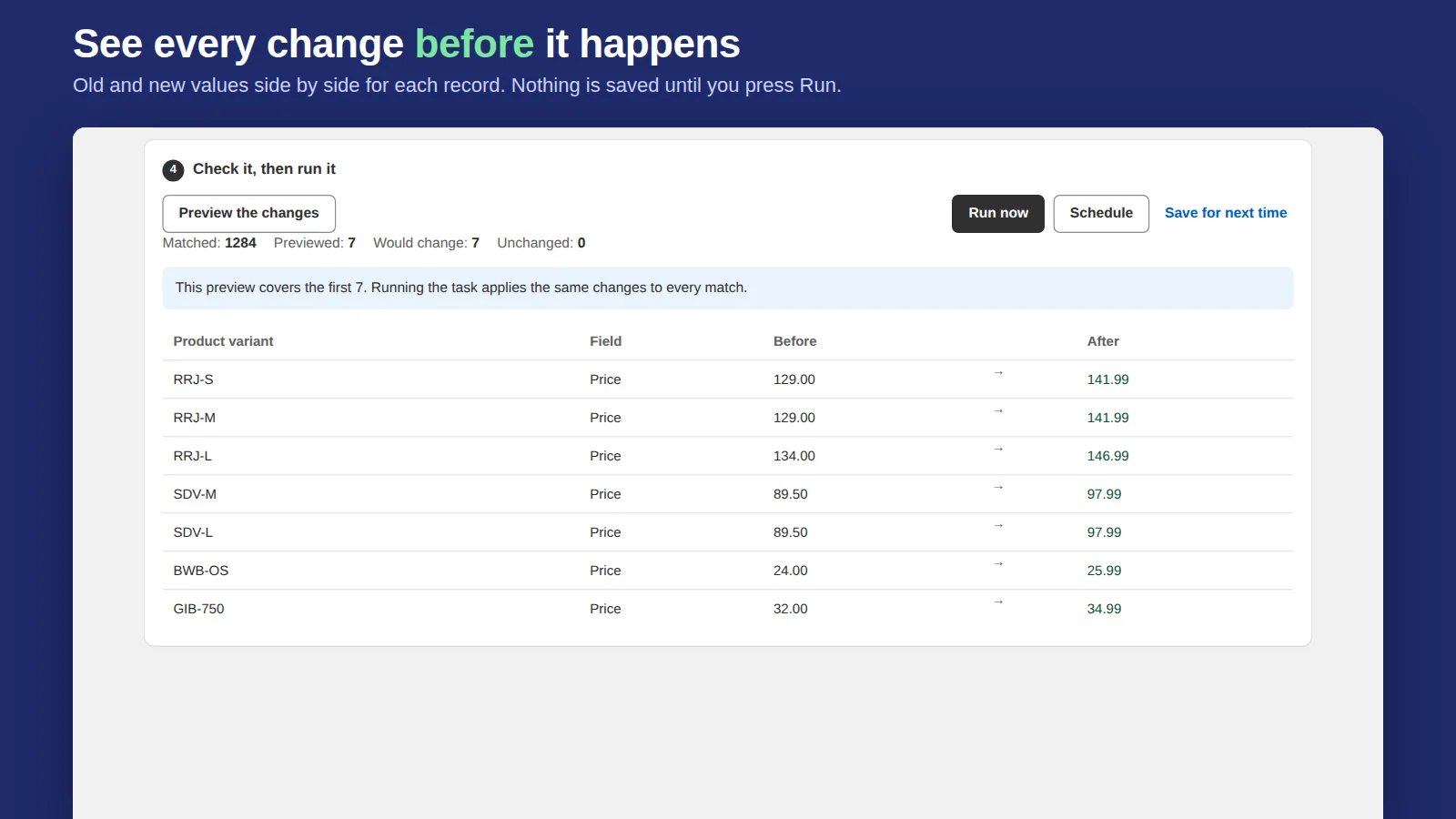
If you change prices often, an app saves the export/formula/import loop. We built Bulk Edit Everything for exactly this: pick products or variants with Shopify's own search filters, then choose a change such as "increase price by 8%", "round to .99", "set price from cost + margin" or "never below a floor". You see every variant's price before and after, then run it.
- Sales on a timer. Schedule the price drop to start Friday 00:00 and a second task to put prices back on Monday (Starter and Pro plans).
- Undo. Every task keeps the old values, so one click restores them, even for a task that stopped halfway.
- Beyond price. The same task can also set compare-at price, add a "sale" tag and change SEO titles.
Which way should you use?
- Under ~30 products, one-off: the built-in bulk editor.
- Hundreds of products, one-off, comfortable with spreadsheets: CSV export and import, with a backup copy.
- Recurring sales, percentage rules, or you want an undo button: an app.
A note on international prices
If what you actually want is "10% higher in the UK", that isn't a bulk edit. Shopify Markets lets you set a price adjustment per market, which leaves your base prices alone. Change base prices only when the price should change everywhere.
Running a sale? See how to schedule a sale in Shopify so the new prices start and end on time.
Related: bulk editing compare-at prices for a sale and bulk edit apps compared.
Discount by quantity instead of cutting prices
If the goal is bigger orders rather than a lower price for everyone, keep your prices and reward volume: buy 3 save 5%, buy 6 save 10%. Our Tierwise app runs those tiers as an automatic Shopify discount and shows a tier table on the product page. See Shopify tiered pricing compared.